---
title: "Docker Deploy"
slug: "Docker-deploy"
description:
date: "2025-09-29T12:13:39+08:00"
lastmod: "2025-09-29T12:13:39+08:00"
image: cover.png
math:
license:
hidden: false
draft: false
categories: [""]
tags: [""]
---
## 什么是Docker
Docker 使您能够将应用程序与基础架构分离,从而快速交付软件。借助 Docker,您可以像管理应用程序一样管理基础架构。通过利用 Docker 的代码发布、测试和部署方法,您可以显著缩短从编写代码到在生产环境中运行代码之间的延迟。
Docker 提供了在松散隔离的环境中(称为容器)打包和运行应用程序的功能。这种隔离性和安全性使您可以在给定主机上同时运行多个容器。容器是轻量级的,包含运行应用程序所需的一切,因此您无需依赖主机上安装的内容。您可以在工作时共享容器,并确保与您共享的每个人都能获得相同的容器并以相同的方式工作。
Docker 提供了工具和平台来管理容器的生命周期:
- 使用容器开发您的应用程序及其支持组件。
- 容器成为分发和测试应用程序的单元。
-
准备就绪后,将应用程序以容器或编排服务的形式部署到生产环境中。无论您的生产环境是本地数据中心、云提供商还是两者的混合环境,操作都相同。
## 我可以使用 Docker 来做什么?
### Fast, consistent delivery of your applications
Docker 允许开发人员在标准化环境中使用提供应用程序和服务的本地容器工作,从而简化开发生命周期。容器非常适合持续集成和持续交付 (CI/CD) 工作流。
- 您的开发人员在本地编写代码并使用 Docker 容器与同事共享他们的工作。
- 他们使用 Docker 将他们的应用程序推送到测试环境并运行自动和手动测试。
-
当开发人员发现错误时,他们可以在开发环境中修复它们,然后重新部署到测试环境进行测试和验证。
- 测试完成后,向客户提供修复就像将更新后的图像推送到生产环境一样简单。
### Docker architecture
Docker 采用客户端-服务器架构。Docker 客户端与 Docker 守护进程通信,后者负责构建、运行和分发 Docker 容器等繁重工作。Docker 客户端和守护进程可以运行在同一系统上,或者您可以将 Docker 客户端连接到远程 Docker 守护进程。Docker 客户端和守护进程使用 REST API、UNIX 套接字或网络接口进行通信。另一个 Docker 客户端是 Docker Compose,它允许您处理由一组容器组成的应用程序。
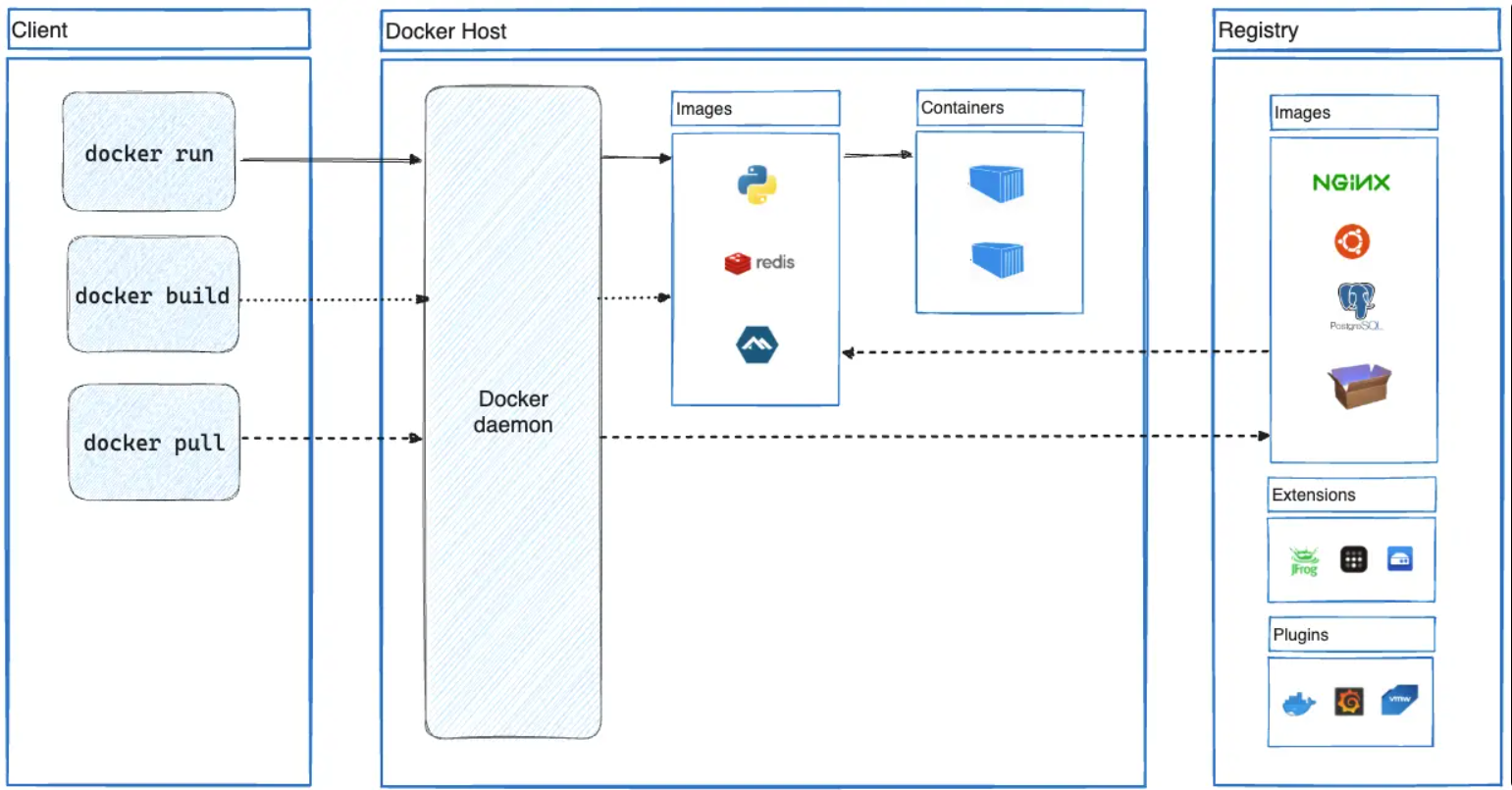 Docker 守护进程 ( `dockerd` ) 监听 Docker API 请求并管理 Docker 对象,例如镜像、容器、网络和卷。守护进程还可以与其他守护进程通信以管理 Docker 服务。
Docker 客户端 ( `docker` ) 是许多 Docker 用户与 Docker 交互的主要方式。当您使用诸如 `docker run` 类的命令时,客户端会将这些命令发送到 `dockerd` ,由后者执行。 `docker` 命令使用 Docker API。Docker 客户端可以与多个守护进程通信。
### Docker Register
Docker 镜像仓库用于存储 Docker 镜像。Docker Hub 是一个任何人都可以使用的公共镜像仓库,Docker 默认会在 Docker Hub 上查找镜像。您甚至可以运行自己的私有镜像仓库。
使用 `docker pull` 或 `docker run` 命令时,Docker 会从您配置的注册表中提取所需的镜像。使用 `docker push` 命令时,Docker 会将镜像推送到您配置的注册表。
## 基础概念/Docker Objects
#### **Container**
就像app或者软件,实现方式略有不同,但是提供了类似的隔离。我们运行的是数据库、消息队列、网络服务器
每个容器化的进程都可以在完全独立于其它容器的隔离环境中运行,也独立于主机。
容器是镜像的可运行实例。您可以使用 Docker API 或 CLI 创建、启动、停止、移动或删除容器。
您可以将容器连接到一个或多个网络、为其附加存储,甚至可以根据其当前状态创建新的镜像。默认情况下,容器与其他容器及其主机之间具有相对良好的隔离。您可以控制容器的网络、存储或其他底层子系统与其他容器或主机之间的隔离程度。
特点:
- 自包含。每个容器都具备其运行所需的一切,无需依赖主机上任何预安装的依赖项。
- 隔离。由于容器是独立运行的,因此它们对主机和其他容器的影响极小,从而提高了应用程序的安全性。
-
独立。每个容器均独立管理。删除一个容器不会影响其他容器。
- 可移植。容器可以在任何地方运行!在您的开发机器上运行的容器在数据中心或云端的任何地方都能以相同的方式运行!
这样一来,Docker 就能把这些组件拼起来,并以各种方式连接它们,而不需要我在自己的电脑上一个个安装、配置环境变量,担心如果存在冲突。我的团队一部分人使用windows,一部分人使用Mac。
| 对比项 | 传统安装 | Docker 方式 |
| ---------- | ------------------------ | ------------------------- |
| 环境隔离 | 全部在系统里混在一起 | 每个容器独立运行 |
| 配置复杂度 | 高,需要改环境变量、路径 | 简单,写在 Compose 文件里 |
| 迁移 | 换电脑要重新配置 | 拷贝 Compose 文件即可 |
| 回滚 | 麻烦 | 一键删除重建容器 |
| 版本管理 | 容易冲突 | 镜像固定版本号 |
Docker 守护进程 ( `dockerd` ) 监听 Docker API 请求并管理 Docker 对象,例如镜像、容器、网络和卷。守护进程还可以与其他守护进程通信以管理 Docker 服务。
Docker 客户端 ( `docker` ) 是许多 Docker 用户与 Docker 交互的主要方式。当您使用诸如 `docker run` 类的命令时,客户端会将这些命令发送到 `dockerd` ,由后者执行。 `docker` 命令使用 Docker API。Docker 客户端可以与多个守护进程通信。
### Docker Register
Docker 镜像仓库用于存储 Docker 镜像。Docker Hub 是一个任何人都可以使用的公共镜像仓库,Docker 默认会在 Docker Hub 上查找镜像。您甚至可以运行自己的私有镜像仓库。
使用 `docker pull` 或 `docker run` 命令时,Docker 会从您配置的注册表中提取所需的镜像。使用 `docker push` 命令时,Docker 会将镜像推送到您配置的注册表。
## 基础概念/Docker Objects
#### **Container**
就像app或者软件,实现方式略有不同,但是提供了类似的隔离。我们运行的是数据库、消息队列、网络服务器
每个容器化的进程都可以在完全独立于其它容器的隔离环境中运行,也独立于主机。
容器是镜像的可运行实例。您可以使用 Docker API 或 CLI 创建、启动、停止、移动或删除容器。
您可以将容器连接到一个或多个网络、为其附加存储,甚至可以根据其当前状态创建新的镜像。默认情况下,容器与其他容器及其主机之间具有相对良好的隔离。您可以控制容器的网络、存储或其他底层子系统与其他容器或主机之间的隔离程度。
特点:
- 自包含。每个容器都具备其运行所需的一切,无需依赖主机上任何预安装的依赖项。
- 隔离。由于容器是独立运行的,因此它们对主机和其他容器的影响极小,从而提高了应用程序的安全性。
-
独立。每个容器均独立管理。删除一个容器不会影响其他容器。
- 可移植。容器可以在任何地方运行!在您的开发机器上运行的容器在数据中心或云端的任何地方都能以相同的方式运行!
这样一来,Docker 就能把这些组件拼起来,并以各种方式连接它们,而不需要我在自己的电脑上一个个安装、配置环境变量,担心如果存在冲突。我的团队一部分人使用windows,一部分人使用Mac。
| 对比项 | 传统安装 | Docker 方式 |
| ---------- | ------------------------ | ------------------------- |
| 环境隔离 | 全部在系统里混在一起 | 每个容器独立运行 |
| 配置复杂度 | 高,需要改环境变量、路径 | 简单,写在 Compose 文件里 |
| 迁移 | 换电脑要重新配置 | 拷贝 Compose 文件即可 |
| 回滚 | 麻烦 | 一键删除重建容器 |
| 版本管理 | 容易冲突 | 镜像固定版本号 |
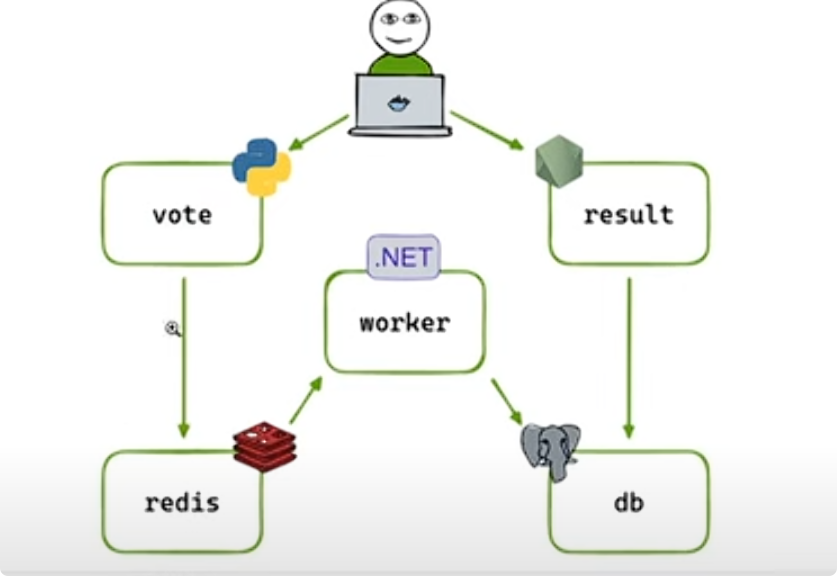 #### Containers versus virtual machines (VMs)
简单来说,虚拟机是一个完整的操作系统,拥有自己的内核、硬件驱动程序、程序和应用程序。仅仅为了隔离单个应用程序而启动虚拟机会带来很大的开销。
容器只是一个独立的进程,包含运行所需的所有文件。如果您运行多个容器,它们将共享同一个内核,从而允许您在更少的基础设施上运行更多应用程序。
#### **Image**
我们可以将容器镜像视为一个单独的包,其中包含运行容器/ 进程所需的所有内容。在本例中,它将包含 Node 环境、后端代码和已编译的 React 代码。
如果您不熟悉容器镜像,可以将其视为一个标准化软件包,其中包含运行应用程序所需的所有内容,包括其文件、配置和依赖项。这些软件包可以分发并与其他人共享。
如果将容器作为隔离的沙盒环境,它们仅使用环境的文件运行。 如何将文件放在环境里?如何共享这些文件?——镜像。
镜像就是这些包括文件、二进制文件、操作系统包和库,标准化的包。
镜像是一个只读模板,其中包含创建 Docker 容器的说明。一旦创建了镜像,无法修改或更改它。只能创建一个新的或者向其中添加额外的层。
镜像由层组成,这些层基本上代表文件系统的变化。每一层代表一组文件系统变更,包括添加、删除或修改文件。
这两个原则允许您扩展或添加现有镜像。例如,如果您正在构建一个 Python 应用,您可以从 [Python 镜像](https://hub.docker.com/_/python)开始,然后添加额外的层来安装应用的依赖项并添加代码。这样您就可以专注于应用本身,而不是 Python 本身。
也就是说,当你需要更新的时候,你不再需要进入生产环境来修改内容,而是构建一个新的镜像。
通常,一个镜像基于另一个镜像,并进行了一些额外的自定义。例如,您可以构建一个基于 `ubuntu` 镜像 图像,但会安装 Apache Web 服务器和您的应用程序,以及 使您的应用程序运行所需的配置详细信息。
您可以创建自己的镜像,也可以只使用其他人创建并发布在镜像仓库中的镜像。要构建自己的镜像,您需要创建一个Dockerfile,该文件使用简单的语法来定义创建和运行镜像所需的步骤。Dockerfile 中的每条指令都会在镜像中创建一个层。当您更改 Dockerfile 并重建镜像时,只有那些已更改的层会被重建。
任何使用该映像运行容器的机器都将能够按照构建的方式运行该应用程序,而无需在机器上预先安装任何其他东西。
**镜像 = 模板 + 配方 + 代码和依赖的打包快照**
- 它是一个 **只读** 的文件系统快照,包含程序运行所需的一切(代码、环境、库、配置等)。
- 镜像本身不会“运行”,就像一个蓝图。
- 你可以从同一个镜像创建多个容器,就像从同一个模板生成多个实例。
类比:
| 比喻 | 含义 |
| ----------------------------- | ----------------- |
| 类(Class) | 镜像(Image) |
| 对象(Object) | 容器(Container) |
| 模板(Template) | 镜像 |
| 模板实例(Template Instance) | 容器 |
**容器 = 镜像的运行实例**
- 当你执行 `docker run image_name`,Docker 会:
1. 复制镜像的只读层;
2. 在上面加一层“可写层”(容器层);
3. 启动运行环境(namespace + cgroup 隔离)。
每个容器的运行状态、日志、数据变更,都会存在它自己的可写层中。
删除容器,这一层也就消失了;镜像本身不受影响。
-----
假设Docker Hub有一个镜像:
```
nginx:latest
```
它包含:
- nginx 程序
- 默认配置
- 基础 Linux 环境
当你运行:
```
docker run -d -p 8080:80 nginx
```
Docker 做了这些:
1. 以 `nginx` 镜像为模板;
2. 创建一个容器;
3. 给容器加上独立文件系统;
4. 启动 nginx 服务。
现在你就有了一个“活的 nginx 实例” —— 它在运行、可以接收请求。
而镜像 `nginx:latest` 依然安静地躺在你的系统中,没动过。
------
```
镜像(Image)
├── 层1:基础系统(Ubuntu、Alpine)
├── 层2:依赖库(Node.js、Python 等)
└── 层3:应用代码(你的项目)
容器(Container)
├── 继承镜像所有层(只读)
└── + 容器自己的可写层(运行时变化)
```
| 概念 | 类比 | 特点 |
| ---------------- | --------------- | ---------------------- |
| 镜像 (Image) | 模板 / 类 | 只读、可重复使用、静态 |
| 容器 (Container) | 模板实例 / 对象 | 可写、可运行、动 |
##### Image layers
镜像中的每一层都包含一系列文件系统更改 - 添加、删除或修改。让我们来看一个理论上的镜像:
1. 第一层添加了基本命令和包管理器,例如 apt。
2. 第二层安装 Python 运行时和 pip 用于依赖项管理。
3.
第三层复制应用程序的特定 requirements.txt 文件。
4. 第四层安装该应用程序的特定依赖项。
5.
第五层复制应用程序的实际源代码。
#### Containers versus virtual machines (VMs)
简单来说,虚拟机是一个完整的操作系统,拥有自己的内核、硬件驱动程序、程序和应用程序。仅仅为了隔离单个应用程序而启动虚拟机会带来很大的开销。
容器只是一个独立的进程,包含运行所需的所有文件。如果您运行多个容器,它们将共享同一个内核,从而允许您在更少的基础设施上运行更多应用程序。
#### **Image**
我们可以将容器镜像视为一个单独的包,其中包含运行容器/ 进程所需的所有内容。在本例中,它将包含 Node 环境、后端代码和已编译的 React 代码。
如果您不熟悉容器镜像,可以将其视为一个标准化软件包,其中包含运行应用程序所需的所有内容,包括其文件、配置和依赖项。这些软件包可以分发并与其他人共享。
如果将容器作为隔离的沙盒环境,它们仅使用环境的文件运行。 如何将文件放在环境里?如何共享这些文件?——镜像。
镜像就是这些包括文件、二进制文件、操作系统包和库,标准化的包。
镜像是一个只读模板,其中包含创建 Docker 容器的说明。一旦创建了镜像,无法修改或更改它。只能创建一个新的或者向其中添加额外的层。
镜像由层组成,这些层基本上代表文件系统的变化。每一层代表一组文件系统变更,包括添加、删除或修改文件。
这两个原则允许您扩展或添加现有镜像。例如,如果您正在构建一个 Python 应用,您可以从 [Python 镜像](https://hub.docker.com/_/python)开始,然后添加额外的层来安装应用的依赖项并添加代码。这样您就可以专注于应用本身,而不是 Python 本身。
也就是说,当你需要更新的时候,你不再需要进入生产环境来修改内容,而是构建一个新的镜像。
通常,一个镜像基于另一个镜像,并进行了一些额外的自定义。例如,您可以构建一个基于 `ubuntu` 镜像 图像,但会安装 Apache Web 服务器和您的应用程序,以及 使您的应用程序运行所需的配置详细信息。
您可以创建自己的镜像,也可以只使用其他人创建并发布在镜像仓库中的镜像。要构建自己的镜像,您需要创建一个Dockerfile,该文件使用简单的语法来定义创建和运行镜像所需的步骤。Dockerfile 中的每条指令都会在镜像中创建一个层。当您更改 Dockerfile 并重建镜像时,只有那些已更改的层会被重建。
任何使用该映像运行容器的机器都将能够按照构建的方式运行该应用程序,而无需在机器上预先安装任何其他东西。
**镜像 = 模板 + 配方 + 代码和依赖的打包快照**
- 它是一个 **只读** 的文件系统快照,包含程序运行所需的一切(代码、环境、库、配置等)。
- 镜像本身不会“运行”,就像一个蓝图。
- 你可以从同一个镜像创建多个容器,就像从同一个模板生成多个实例。
类比:
| 比喻 | 含义 |
| ----------------------------- | ----------------- |
| 类(Class) | 镜像(Image) |
| 对象(Object) | 容器(Container) |
| 模板(Template) | 镜像 |
| 模板实例(Template Instance) | 容器 |
**容器 = 镜像的运行实例**
- 当你执行 `docker run image_name`,Docker 会:
1. 复制镜像的只读层;
2. 在上面加一层“可写层”(容器层);
3. 启动运行环境(namespace + cgroup 隔离)。
每个容器的运行状态、日志、数据变更,都会存在它自己的可写层中。
删除容器,这一层也就消失了;镜像本身不受影响。
-----
假设Docker Hub有一个镜像:
```
nginx:latest
```
它包含:
- nginx 程序
- 默认配置
- 基础 Linux 环境
当你运行:
```
docker run -d -p 8080:80 nginx
```
Docker 做了这些:
1. 以 `nginx` 镜像为模板;
2. 创建一个容器;
3. 给容器加上独立文件系统;
4. 启动 nginx 服务。
现在你就有了一个“活的 nginx 实例” —— 它在运行、可以接收请求。
而镜像 `nginx:latest` 依然安静地躺在你的系统中,没动过。
------
```
镜像(Image)
├── 层1:基础系统(Ubuntu、Alpine)
├── 层2:依赖库(Node.js、Python 等)
└── 层3:应用代码(你的项目)
容器(Container)
├── 继承镜像所有层(只读)
└── + 容器自己的可写层(运行时变化)
```
| 概念 | 类比 | 特点 |
| ---------------- | --------------- | ---------------------- |
| 镜像 (Image) | 模板 / 类 | 只读、可重复使用、静态 |
| 容器 (Container) | 模板实例 / 对象 | 可写、可运行、动 |
##### Image layers
镜像中的每一层都包含一系列文件系统更改 - 添加、删除或修改。让我们来看一个理论上的镜像:
1. 第一层添加了基本命令和包管理器,例如 apt。
2. 第二层安装 Python 运行时和 pip 用于依赖项管理。
3.
第三层复制应用程序的特定 requirements.txt 文件。
4. 第四层安装该应用程序的特定依赖项。
5.
第五层复制应用程序的实际源代码。
 这非常有益,因为它允许在镜像之间重用层。例如,假设您想创建另一个 Python 应用程序。由于分层,您可以利用相同的 Python 基础。这将加快构建速度,并减少分发镜像所需的存储和带宽。镜像分层可能类似于以下内容:
 通过图层,您可以通过重复使用其他图像的基础图层来扩展其他图像,从而允许您仅添加应用程序所需的数据。
##### Stacking the layers
分层是通过内容可寻址存储和联合文件系统实现的。虽然这有点技术性,但其工作原理如下:
1. 下载每一层后,它会被提取到主机文件系统上自己的目录中。
2.
当您从图像运行容器时,将创建一个联合文件系统,其中各层相互堆叠,从而创建一个新的统一视图。
3. 当容器启动时,使用 `chroot` 将其根目录设置为此统一目录的位置。
创建联合文件系统时,除了镜像层之外,还会为正在运行的容器创建一个专用目录。这允许容器更改文件系统,同时保持原始镜像层不变。这样一来,您就可以从同一个底层镜像运行多个容器

1. 在终端中,运行以下命令来启动新容器:
```console
docker run --name=base-container -ti ubuntu
```
下载镜像并启动容器后,您应该会看到一个新的 shell 提示符。它正在容器内运行。它看起来类似于以下内容(容器 ID 会有所不同):
```console
root@d8c5ca119fcd:/#
```
2. 在容器内,运行以下命令来安装 Node.js:
```console
apt update && apt install -y nodejs
```
此命令运行时,它会下载 Node 并将其安装到容器内。在联合文件系统的上下文中,这些文件系统的更改将发生在该容器独有的目录中。
3. 通过运行以下命令验证 Node 是否已安装:
```console
node -e 'console.log("Hello world!")'
```
然后您应该会看到控制台中出现“Hello world!”。
4. 现在您已经安装了 Node,可以将所做的更改保存为新的**镜像层**,以便从中启动新容器或构建新镜像。为此,您将使用 [`docker container commit`](https://docs.docker.com/reference/cli/docker/container/commit/) 命令。在新终端中运行以下命令:
```console
docker container commit -m "Add node" base-container node-base
```
这会创建一个新的镜像 node-base,它等于「base-image + Node 已安装」。
所以 node-base 就是一个带 Node 的自定义镜像。
5.
使用 `docker image history` 命令查看图像的层:
```console
docker image history node-base
```
此时只是创建了镜像,如果需要打包成一个容器
6. 为了证明您的镜像已安装 Node,您可以使用这个新镜像启动一个新容器:
```console
docker run node-base node -e "console.log('Hello again')"
```
7. 现在您已经完成了基础镜像的创建,您可以删除该容器:
```console
docker rm -f base-container
```
`commit` 是把容器的修改固化下来变成一个新的镜像;
`run` 是用镜像启动一个新的容器(容器是镜像的“运行实例”)。
基础镜像是构建其他镜像的基础。任何镜像都可以用作基础镜像。不过,有些镜像是专门设计为构建块的,为应用程序提供基础或起点。
在这个例子中,你可能不会部署这个 `node-base` 镜像,因为它实际上还没有做任何事情。但它可以作为你进行其他构建的基础。
现在您有了基础图像,您可以扩展该图像来构建其他图像。
1. 使用新创建的节点基础映像启动一个新容器:
```console
docker run --name=app-container -ti node-base
```
2. 在此容器内,运行以下命令来创建一个 Node 程序:
```console
echo 'console.log("Hello from an app")' > app.js
```
要运行这个 Node 程序,您可以使用以下命令并查看屏幕上打印的消息:
```console
node app.js
```
3. 在另一个终端中,运行以下命令将此容器的更改保存为新图像:
```console
docker container commit -c "CMD node app.js" -m "Add app" app-container sample-app
```
此命令不仅会创建一个名为 `sample-app` 新镜像,还会向该镜像添加其他配置,以设置启动容器时的默认命令。在本例中,您将它设置为自动运行 `node app.js` 。
4.
在容器外的终端中,运行以下命令来查看更新的层:
```console
docker image history sample-app
```
5. 最后,使用全新的镜像启动一个新容器。由于您指定了默认命令,因此可以使用以下命令:
```console
docker run sample-app
```
您应该会看到来自 Node 程序的问候语出现在终端中。
现在您已经完成了容器的操作,您可以使用以下命令删除它们:
```console
docker rm -f app-container
```
- 如果你运行容器时执行的是
```
docker run --name app-container sample-app
```
那么容器的名字就是 **app-container**,此时你删除它的命令确实是:
```
docker rm -f app-container
```
- 但如果你只是执行了:
```
docker run sample-app
```
没有指定 `--name`,那么 Docker 会自动生成一个随机容器名。
这时你需要先查出容器的名字或 ID,然后再删除,比如:
```
docker ps -a
```
找到那个容器(可能叫 `frosty_mclean` 之类),然后:
```
docker rm -f <容器名或ID>
```
------
⚠️ 注意
- `docker rm` 删除的是 **容器**。
- 如果你还想删除镜像(例如 `sample-app`),可以用:
```
docker rmi sample-app
```
#### Registry
镜像存储在哪里?
容器镜像存储在计算机系统上,但是如果您想于朋友共享它们或者在另一台机器上使用它们,就是需要镜像注册表。
镜像注册表(Image registry)是用于存储和共享容器镜像的集中位置。它可以是公共的,也可以是私有的。Docker Hub是一个任何人都可以使用的公共镜像注册表,也是默认的镜像注册表。
注册表就是您可以向其推送图像和从中拉取图像的地方。
Docker Hub实现了开放容器计划(OCI)分发规范。
#### Registry vs. repository
在使用注册表时,您可能会听到 *“注册表”* 和 *“存储库”* 这两个术语,好像它们可以互换。尽管它们相关,但它们并不完全相同。
*镜像仓库 (Registry)* 是一个集中存储和管理容器镜像的位置,而*仓库 (Repository)* 是镜像仓库中相关容器镜像的集合。您可以将其视为一个文件夹,用于根据项目组织镜像。每个仓库都包含一个或多个容器镜像。
#### Network
#### Volunms
#### Plugins
#### Docker Engine
#### **Docker Hub **
要共享 Docker 镜像,您需要一个地方来存储它们。这时,镜像仓库就派上用场了。虽然镜像仓库有很多,但 Docker Hub 是默认且首选的镜像仓库。Docker Hub 不仅为您提供了存储自己镜像的地方,还为您提供了查找其他镜像的地方,方便您运行或作为自己镜像的基础
#### Docker Compose
但是,现在您想要做一些更复杂的事情——运行数据库、消息队列、缓存或各种其他服务。您是将所有东西都安装在一个容器中吗?还是运行多个容器?如果您运行多个容器,如何将它们连接在一起?
使用 Docker Compose,您可以在一个 YAML 文件中定义所有容器及其配置。如果您将此文件添加到代码仓库中,那么任何克隆您仓库的人都可以通过一条命令启动并运行它。
重要的是要理解 Compose 是一个声明式工具(declearative tool) - 您只需定义它即可运行。您不必总是从头开始重新创建所有内容。如果您进行了更改,只需再次运行 `docker compose up` ,Compose 就会协调文件中的更改并智能地应用它们。
Dockerfile 提供构建容器镜像的指令,而 Compose 文件则定义正在运行的容器。通常,Compose 文件会引用 Dockerfile 来构建用于特定服务的镜像。
使用 [`docker compose up`](https://docs.docker.com/reference/cli/docker/compose/up/) 命令启动应用程序:
```console
docker compose up -d --build
```
运行此命令时,您应该看到如下输出:
```console
[+] Running 5/5
✔ app 3 layers [⣿⣿⣿] 0B/0B Pulled 7.1s
✔ e6f4e57cc59e Download complete 0.9s
✔ df998480d81d Download complete 1.0s
✔ 31e174fedd23 Download complete 2.5s
✔ 43c47a581c29 Download complete 2.0s
[+] Running 4/4
⠸ Network todo-list-app_default Created 0.3s
⠸ Volume "todo-list-app_todo-mysql-data" Created 0.3s
✔ Container todo-list-app-app-1 Started 0.3s
✔ Container todo-list-app-mysql-1 Started 0.3s
```
这里发生了很多事!以下几点需要提醒一下:
-
从 Docker Hub 下载了两个容器镜像 - node 和 MySQL
-
已为您的应用程序创建网络
-
创建了一个卷,用于在容器重启之间保存数据库文件
- 两个容器已启动,并具备所有必要的配置
由于此应用程序是使用 Docker Compose 启动的,因此完成后很容易将其全部拆除。
1. 在 CLI 中,使用 [`docker compose down`](https://docs.docker.com/reference/cli/docker/compose/down/) 命令删除所有内容:
```console
docker compose down
```
```console
[+] Running 3/3
✔ Container todo-list-app-mysql-1 Removed 2.9s
✔ Container todo-list-app-app-1 Removed 0.1s
✔ Network todo-list-app_default Removed 0.1s
```
> **Volume persistence 卷持久性**
>
> 默认情况下,拆除 Compose 堆栈时*不会*自动删除卷。这样做的目的是,当您重新启动堆栈时,您可能需要恢复数据。
>
> 如果您确实想删除卷,请在运行 `docker compose down` 命令时添加 `--volumes` 标志:
>
>
>
> ```console
> docker compose down --volumes
> [+] Running 1/0
> ✔ Volume todo-list-app_todo-mysql-data Removed
> ```
2. 或者,您可以使用 Docker Desktop GUI 通过选择应用程序堆栈并选择 **“删除”** 按钮来删除容器。
#### **Dockerfile**
`Dockerfile` 是一个基于文本的脚本,它提供了有关如何构建镜像的指令集。在本快速入门指南中,存储库已包含 Dockerfile。
Dockerfile 是一个用于创建容器镜像的文本文档。它为镜像构建器提供了有关要运行的命令、要复制的文件、启动命令等的说明。
例如,以下 Dockerfile 将生成一个可运行的 Python 应用程序:
```dockerfile
FROM python:3.13
WORKDIR /usr/local/app
# Install the application dependencies
COPY requirements.txt ./
RUN pip install --no-cache-dir -r requirements.txt
# Copy in the source code
COPY src ./src
EXPOSE 8080
# Setup an app user so the container doesn't run as the root user
RUN useradd app
USER app
CMD ["uvicorn", "app.main:app", "--host", "0.0.0.0", "--port", "8080"]
```
##### Common instructions
`Dockerfile` 中一些最常见的指令包括:
- `FROM ` - 这指定了构建将扩展的基础图像。
-
`WORKDIR ` - 此指令指定“工作目录”或图像中将复制文件和执行命令的路径。
- `COPY ` - 此指令告诉构建器从主机复制文件并将其放入容器映像中。
-
`RUN ` - 此指令告诉构建器运行指定的命令。
-
`ENV ` - 此指令设置正在运行的容器将使用的环境变量。
- `EXPOSE ` - 此指令在图像上设置配置,指示图像想要公开的端口。
-
`USER ` - 此指令为所有后续指令设置默认用户。
- `CMD ["", ""]` - 此指令设置使用此映像的容器将运行的默认命令。
正如您在前面的示例中看到的那样,Dockerfile 通常遵循以下步骤:
1. 确定您的基础图像
2. 安装应用程序依赖项
3. 复制任何相关的源代码和/或二进制文件
4. 配置最终图像
需要注意的是, `Dockerfile` *没有*文件扩展名。有些编辑器会自动为文件添加扩展名(或者提示没有扩展名)。
**使用 `docker init` 快速容器化新项目**
`docker init` 命令将分析您的项目并快速创建 Dockerfile、 `compose.yaml` 和 `.dockerignore` ,帮助您获得 开始吧。既然你在这里专门学习 Dockerfiles, 你现在不会用它。
通常,镜像是使用 Dockerfile 构建的。最基本的 `docker build` 命令可能如下所示:
```bash
docker build .
```
命令中的最后一个 `.` 提供了[构建上下文](https://docs.docker.com/build/concepts/context/#what-is-a-build-context)的路径或 URL。在此位置,构建器将找到 `Dockerfile` 和其他引用的文件。
当您运行构建时,构建器会根据需要提取基础映像,然后运行 Dockerfile 中指定的指令。
使用上述命令时,镜像没有名称,但输出会提供镜像的 ID。例如,上述命令可能会产生以下输出:
```console
exporting to image 0.1s
=> => exporting layers 0.1s
=> => writing image sha256:9924dfd9350407b3df01d1a0e1033b1e543523ce7d5d5e2c83a724480ebe8f00 0.0s
```
使用前面的输出,您可以使用引用的图像启动容器:
```console
docker run sha256:9924dfd9350407b3df01d1a0e1033b1e543523ce7d5d5e2c83a724480ebe8f00
```
.这个名字肯定不容易记住,这时标记就变得有用了。
##### Tagging images 标记图像
给图片添加标签是为图片赋予一个容易记住的名称的方法。然而,图片名称是有结构的。完整的图片名称结构如下:
```text
[HOST[:PORT_NUMBER]/]PATH[:TAG]
```
- `HOST` :可选,镜像所在的镜像仓库主机名。如果未指定主机名,则默认使用 Docker 的公共镜像仓库 `docker.io` 。
- `PORT_NUMBER` :如果提供了主机名,则为注册表端口号
- `PATH` :镜像的路径,由斜杠分隔的组件组成。对于 Docker Hub,格式遵循 `[NAMESPACE/]REPOSITORY` ,其中 namespace 是用户或组织的名称。如果未指定 namespace,则使用 `library` ,即 Docker 官方镜像的命名空间。
- `TAG` :自定义的、人类可读的标识符,通常用于标识镜像的不同版本或变体。如果未指定标签,则默认使用 `latest` 。
要在构建期间标记图像,请添加 `-t` 或 `--tag` 标志:
```console
docker build -t my-username/my-image .
```
如果您已经构建了镜像,则可以使用 [`docker image tag`](https://docs.docker.com/engine/reference/commandline/image_tag/) 命令向镜像添加另一个标签:
```console
docker image tag my-username/my-image another-username/another-image:v1
```
`docker image history mobywhale/concepts-build-image-demo`
`docker tag <仓库名>:<标签>`
##### Publishing images 发布图像
构建并标记好镜像后,就可以将其推送到镜像仓库了。使用 [`docker push`](https://docs.docker.com/engine/reference/commandline/image_push/) 命令即可:
```console
docker push my-username/my-image
```
docker build -t my-node-app .
你会得到一个镜像 my-node-app。
👉 这是一个单个服务的“成品”镜像。
docker compose up
👉 一条命令同时启动 web 和 redis 两个容器。
不用你手动去一个个 docker run。
| 对比项 | Dockerfile | docker-compose.yml |
| -------------- | ------------------------- | ------------------------- |
| 主要用途 | 构建镜像 | 启动和管理多个容器 |
| 内容类型 | 一步步构建指令 | 各容器服务的配置 |
| 操作命令 | `docker build` | `docker compose up` |
| 作用范围 | 单个镜像 | 多个容器(应用栈) |
| 是否依赖另一方 | Compose 可引用 Dockerfile | Dockerfile 不需要 Compose |
##### Cache
```dockerfile
FROM node:22-alpine
WORKDIR /app
COPY . .
RUN yarn install --production
CMD ["node", "./src/index.js"]
```
当您运行 `docker build` 命令创建新镜像时,Docker 会执行 Dockerfile 中的每条指令,并按照指定的顺序为每个命令创建一个层。对于每条指令,Docker 都会检查是否可以重用之前构建的指令。如果发现之前已经执行过类似的指令,Docker 无需重做,而是会使用缓存的结果。这样,您的构建过程将变得更快、更高效,从而节省您宝贵的时间和资源。
有效使用构建缓存可以让您通过重复使用先前构建的结果并跳过不必要的工作来加快构建速度。为了最大限度地利用缓存并避免耗费资源和时间的重建,了解缓存失效的工作原理至关重要。以下是一些可能导致缓存失效的情况示例:
- 对 `RUN` 指令的任何更改都会使该层失效。如果 Dockerfile 中的 `RUN` 命令有任何修改,Docker 会检测到该更改并使构建缓存失效。
- 使用 `COPY` 或 `ADD` 指令复制到镜像中的文件的任何更改。Docker 会密切关注项目目录中文件的任何更改。无论是内容更改还是权限等属性的更改,Docker 都会将这些修改视为使缓存失效的触发因素。
- 一旦某个层失效,所有后续层也会失效。如果任何先前的层(包括基础镜像或中间层)由于变更而失效,Docker 会确保依赖该层的后续层也失效。这可以保持构建过程同步,并防止出现不一致的情况。
当您编写或编辑 Dockerfile 时,请留意不必要的缓存未命中,以确保构建尽可能快速高效地运行。
##### 多阶段构建
在传统的构建过程中,所有构建指令都按顺序在单个构建容器中执行:下载依赖项、编译代码以及打包应用程序。所有这些步骤最终都会出现在最终镜像中。这种方法虽然有效,但会导致镜像过于臃肿,带来不必要的负担,并增加安全风险。这时,多阶段构建就应运而生了。
多阶段构建会在 Dockerfile 中引入多个阶段,每个阶段都有特定的用途。可以将其想象成在多个不同环境中同时运行构建的不同部分。通过将构建环境与最终的运行时环境分离,可以显著减少镜像大小和攻击面。这对于构建依赖项较多的应用程序尤其有益。
建议对所有类型的应用程序进行多阶段构建。
- 对于 JavaScript、Ruby 或 Python 等解释型语言,您可以在一个阶段构建并压缩代码,然后将可用于生产环境的文件复制到更小的运行时镜像中。这可以优化镜像的部署。
- 对于 C、Go 或 Rust 等编译型语言,多阶段构建允许您在一个阶段完成编译,并将编译后的二进制文件复制到最终的运行时映像中。无需将整个编译器捆绑到最终映像中。
以下是使用伪代码简化的多阶段构建结构示例。请注意,其中包含多个 `FROM` 语句和一个新的 `AS ` 。此外,第二阶段的 `COPY` 语句是 `--from` 上一阶段复制的。
```dockerfile
# Stage 1: Build Environment
FROM builder-image AS build-stage
# Install build tools (e.g., Maven, Gradle)
# Copy source code
# Build commands (e.g., compile, package)
# Stage 2: Runtime environment
FROM runtime-image AS final-stage
# Copy application artifacts from the build stage (e.g., JAR file)
COPY --from=build-stage /path/in/build/stage /path/to/place/in/final/stage
# Define runtime configuration (e.g., CMD, ENTRYPOINT)
```
此 Dockerfile 使用两个阶段:
- 构建阶段使用包含编译应用程序所需构建工具的基础镜像。它包含安装构建工具、复制源代码和执行构建命令的命令。
- 最后阶段使用一个较小的基础镜像来运行您的应用程序。它会从构建阶段复制已编译的构件(例如,一个 JAR 文件)。最后,它会定义用于启动应用程序的运行时配置(使用 `CMD` 或 `ENTRYPOINT` )。
考虑以下 Dockerfile:
```dockerfile
FROM eclipse-temurin:21.0.8_9-jdk-jammy AS builder
WORKDIR /opt/app
COPY .mvn/ .mvn
COPY mvnw pom.xml ./
RUN ./mvnw dependency:go-offline
COPY ./src ./src
RUN ./mvnw clean install
FROM eclipse-temurin:21.0.8_9-jre-jammy AS final
WORKDIR /opt/app
EXPOSE 8080
COPY --from=builder /opt/app/target/*.jar /opt/app/*.jar
ENTRYPOINT ["java", "-jar", "/opt/app/*.jar"]
```
请注意,此 Dockerfile 已分为两个阶段。
- 第一阶段与之前的 Dockerfile 相同,提供用于构建应用程序的 Java 开发工具包 (JDK) 环境。此阶段名为 builder。
-
第二个阶段是一个名为 `final` 的新阶段。它使用更精简的 `eclipse-temurin:21.0.2_13-jre-jammy` 镜像,其中仅包含运行应用程序所需的 Java 运行时环境 (JRE)。此镜像提供的 Java 运行时环境 (JRE) 足以运行已编译的应用程序(JAR 文件)。
对于生产环境,强烈建议您使用 jlink 生成自定义的类似 JRE 的运行时。所有版本的 Eclipse Temurin 都提供 JRE 镜像,但 `jlink` 允许您创建仅包含应用程序所需 Java 模块的最小运行时。这可以显著减小最终镜像的大小并提高其安全性.
使用多阶段构建,Docker 构建使用一个基础镜像进行编译、打包和单元测试,然后使用一个单独的镜像进行应用程序运行时。因此,最终镜像的大小会更小,因为它不包含任何开发或调试工具。通过将构建环境与最终运行时环境分离,您可以显著减小镜像大小并提高最终镜像的安全性。
在多阶段 Dockerfile 中,最后一个阶段 (final) 是默认的构建目标。这意味着,如果您未在 `docker build` 命令中使用 `--target` 标志明确指定目标阶段,Docker 将默认自动构建最后一个阶段。您可以使用 `docker build -t spring-helloworld-builder --target builder .` 来仅构建带有 JDK 环境的构建器阶段。
## Publishing ports 发布端口
您就会明白容器为应用程序的每个组件提供了隔离的进程。每个组件(React 前端、Python API 和 Postgres 数据库)都在其自己的沙盒环境中运行,与主机上的所有其他组件完全隔离。这种隔离对于安全性和管理依赖项非常有益,但也意味着您无法直接访问它们。
通过设置转发规则,发布端口可以突破一些网络隔离。例如,你可以指定将主机端口 `8080` 上的请求转发到容器的端口 `80` 。在创建容器期间,使用 `docker run` 命令的 `-p` (或 `--publish` )标志发布端口。语法如下:
```console
docker run -d -p HOST_PORT:CONTAINER_PORT nginx
```
- `HOST_PORT`: The port number on your host machine where you want to receive traffic
`HOST_PORT` :主机上您想要接收流量的端口号
- `CONTAINER_PORT`: The port number within the container that's listening for connections
`CONTAINER_PORT` :容器内正在监听连接的端口号
For example, to publish the container's port `80` to host port `8080`:
例如,将容器的端口 `80` 发布到主机端口 `8080` :
```console
docker run -d -p 8080:80 nginx
```
Now, any traffic sent to port `8080` on your host machine will be forwarded to port `80` within the container.
现在,发送到主机上端口 `8080` 的任何流量都将被转发到容器内的端口 `80` 。
>
>
> 端口发布后,默认情况下会发布到所有网络接口。这意味着到达您计算机的任何流量都可以访问已发布的应用程序。请注意不要发布数据库或任何敏感信息。 [在此处了解有关已发布端口的更多信息 ](https://docs.docker.com/engine/network/#published-ports)。
#### Publishing to ephemeral ports 发布到临时端口
At times, you may want to simply publish the port but don’t care which host port is used. In these cases, you can let Docker pick the port for you. To do so, simply omit the `HOST_PORT` configuration.
有时,您可能只想发布端口,而不关心使用哪个主机端口。在这种情况下,您可以让 Docker 为您选择端口。为此,只需省略 `HOST_PORT` 配置即可。
For example, the following command will publish the container’s port `80` onto an ephemeral port on the host:
例如,以下命令将容器的端口 `80` 发布到主机上的临时端口:
```console
docker run -p 80 nginx
```
Once the container is running, using `docker ps` will show you the port that was chosen:
一旦容器运行,使用 `docker ps` 将显示所选的端口:
```console
docker ps
CONTAINER ID IMAGE COMMAND CREATED STATUS PORTS NAMES
a527355c9c53 nginx "/docker-entrypoint.…" 4 seconds ago Up 3 seconds 0.0.0.0:54772->80/tcp romantic_williamson
```
In this example, the app is exposed on the host at port `54772`.
在此示例中,应用程序在主机的端口 `54772` 上公开。
#### Publishing all ports 发布所有端口
When creating a container image, the `EXPOSE` instruction is used to indicate the packaged application will use the specified port. These ports aren't published by default.
创建容器镜像时, `EXPOSE` 指令用于指示打包的应用程序将使用指定的端口。默认情况下,这些端口不会发布。
With the `-P` or `--publish-all` flag, you can automatically publish all exposed ports to ephemeral ports. This is quite useful when you’re trying to avoid port conflicts in development or testing environments.
使用 `-P` 或 `--publish-all` 标志,您可以自动将所有公开的端口发布到临时端口。当您尝试避免开发或测试环境中的端口冲突时,这非常有用。
For example, the following command will publish all of the exposed ports configured by the image:
例如,以下命令将发布映像配置的所有公开端口:
```console
docker run -P nginx
```
此示例将使用 Docker Compose 启动相同的应用程序:
1. Create a new directory and inside that directory, create a `compose.yaml` file with the following contents:
创建一个新目录,并在该目录内创建一个包含以下内容的 `compose.yaml` 文件:
```yaml
services:
app:
image: docker/welcome-to-docker
ports:
- 8080:80
```
The `ports` configuration accepts a few different forms of syntax for the port definition. In this case, you’re using the same `HOST_PORT:CONTAINER_PORT` used in the `docker run` command.
`ports` 配置接受几种不同的端口定义语法。在本例中,您使用的 `HOST_PORT:CONTAINER_PORT` 与 `docker run` 命令中的相同。
2. Open a terminal and navigate to the directory you created in the previous step.
打开终端并导航到您在上一步中创建的目录。
3. Use the `docker compose up` command to start the application.
使用 `docker compose up` 命令启动应用程序。
4. Open your browser to [http://localhost:8080](http://localhost:8080/).
打开浏览器访问 [http://localhost:8080](http://localhost:8080/) 。
例如,如果您有一个现有的数据库容器监听标准端口,并且您想要运行同一数据库容器的新实例,那么您可能需要更改新容器监听的端口设置,以使其不与现有容器冲突。有时,如果程序需要更多资源来处理繁重的工作负载,您可能需要增加容器可用的内存,或者设置环境变量以提供程序正常运行所需的特定配置详细信息。
The `docker run` command offers a powerful way to override these defaults and tailor the container's behavior to your liking. The command offers several flags that let you to customize container behavior on the fly.
`docker run` 命令提供了一种强大的方法来覆盖这些默认设置,并根据您的喜好定制容器的行为。该命令提供了几个标志,可让您动态自定义容器行为。
Here's a few ways you can achieve this.
您可以通过以下几种方法实现此目的。
有时,您可能希望使用单独的数据库实例进行开发和测试。在同一端口上运行这些数据库实例可能会发生冲突。您可以在 `docker run` 中使用 `-p` 选项将容器端口映射到主机端口,从而可以同时运行容器的多个实例而不会产生任何冲突。
```console
docker run -d -p HOST_PORT:CONTAINER_PORT postgres
```
### Setting environment variables 设置环境变量
This option sets an environment variable `foo` inside the container with the value `bar`.
此选项在容器内设置一个环境变量 `foo` ,其值为 `bar` 。
```console
docker run -e foo=bar postgres env
```
You will see output like the following:
您将看到如下输出:
```console
HOSTNAME=2042f2e6ebe4
foo=bar
```
`.env` 文件可以方便地为 Docker 容器设置环境变量,避免命令行中出现大量的 `-e` 参数。要使用 `.env` 文件,可以在 `docker run` 命令中传递 `--env-file` 选项。
```console
docker run --env-file .env postgres env
```
### [Restricting the container to consume the resources 限制容器消耗资源](https://docs.docker.com/get-started/docker-concepts/running-containers/overriding-container-defaults/#restricting-the-container-to-consume-the-resources)
You can use the `--memory` and `--cpus` flags with the `docker run` command to restrict how much CPU and memory a container can use. For example, you can set a memory limit for the Python API container, preventing it from consuming excessive resources on your host. Here's the command:
您可以在 `docker run` 命令中使用 `--memory` 和 `--cpus` 标志来限制容器可以使用的 CPU 和内存量。例如,您可以为 Python API 容器设置内存限制,防止其在主机上消耗过多的资源。命令如下:
```console
docker run -e POSTGRES_PASSWORD=secret --memory="512m" --cpus="0.5" postgres
```
This command limits container memory usage to 512 MB and defines the CPU quota of 0.5 for half a core.
此命令将容器内存使用量限制为 512 MB,并将半个核心的 CPU 配额定义为 0.5。
> **Monitor the real-time resource usage
> 监控实时资源使用情况**
>
> You can use the `docker stats` command to monitor the real-time resource usage of running containers. This helps you understand whether the allocated resources are sufficient or need adjustment.
> 您可以使用 `docker stats` 命令来监控正在运行的容器的实时资源使用情况,从而了解分配的资源是否充足或是否需要调整。
By effectively using these `docker run` flags, you can tailor your containerized application's behavior to fit your specific requirements.
通过有效使用这些 `docker run` 标志,您可以定制容器化应用程序的行为以满足您的特定要求。
### [在受控网络中运行 Postgres 容器](https://docs.docker.com/get-started/docker-concepts/running-containers/overriding-container-defaults/#run-postgres-container-in-a-controlled-network)
By default, containers automatically connect to a special network called a bridge network when you run them. This bridge network acts like a virtual bridge, allowing containers on the same host to communicate with each other while keeping them isolated from the outside world and other hosts. It's a convenient starting point for most container interactions. However, for specific scenarios, you might want more control over the network configuration.
默认情况下,容器运行时会自动连接到一个称为桥接网络的特殊网络。此桥接网络的作用类似于虚拟网桥,允许同一主机上的容器相互通信,同时保持它们与外界和其他主机的隔离。对于大多数容器交互来说,这是一个便捷的起点。但是,对于特定场景,您可能需要对网络配置进行更多控制。
Here's where the custom network comes in. You create a custom network by passing `--network` flag with the `docker run` command. All containers without a `--network` flag are attached to the default bridge network.
这就是自定义网络的作用所在。你可以在 `docker run` 命令中传递 `--network` 参数来创建自定义网络。所有未指定 `--network` 参数的容器都会连接到默认的桥接网络。
Follow the steps to see how to connect a Postgres container to a custom network.
按照步骤了解如何将 Postgres 容器连接到自定义网络。
1. Create a new custom network by using the following command:
使用以下命令创建一个新的自定义网络:
```console
docker network create mynetwork
```
2. Verify the network by running the following command:
通过运行以下命令验证网络:
```console
docker network ls
```
This command lists all networks, including the newly created "mynetwork".
此命令列出所有网络,包括新创建的“mynetwork”。
3. Connect Postgres to the custom network by using the following command:
使用以下命令将 Postgres 连接到自定义网络:
```console
docker run -d -e POSTGRES_PASSWORD=secret -p 5434:5432 --network mynetwork postgres
```
This will start Postgres container in the background, mapped to the host port 5434 and attached to the `mynetwork` network. You passed the `--network` parameter to override the container default by connecting the container to custom Docker network for better isolation and communication with other containers. You can use `docker network inspect` command to see if the container is tied to this new bridge network.
这将在后台启动 Postgres 容器,映射到主机端口 5434 并连接到 `mynetwork` 网络。您传递了 `--network` 参数,通过将容器连接到自定义 Docker 网络来覆盖容器默认设置,以便更好地隔离并与其他容器通信。您可以使用 `docker network inspect` 命令查看容器是否已绑定到这个新的桥接网络。
默认桥接和自定义网络之间的主要区别
> 1. DNS resolution: By default, containers connected to the default bridge network can communicate with each other, but only by IP address. (unless you use `--link` option which is considered legacy). It is not recommended for production use due to the various [technical shortcomings](https://docs.docker.com/engine/network/drivers/bridge/#differences-between-user-defined-bridges-and-the-default-bridge). On a custom network, containers can resolve each other by name or alias.
> DNS 解析:默认情况下,连接到默认桥接网络的容器可以相互通信,但只能通过 IP 地址进行通信。(除非使用 `--link` 选项,该选项已被视为旧选项)。由于各种原因,不建议在生产环境中使用。 [技术缺陷 ](https://docs.docker.com/engine/network/drivers/bridge/#differences-between-user-defined-bridges-and-the-default-bridge)。在自定义网络上,容器可以通过名称或别名相互解析。
> 2. Isolation: All containers without a `--network` specified are attached to the default bridge network, hence can be a risk, as unrelated containers are then able to communicate. Using a custom network provides a scoped network in which only containers attached to that network are able to communicate, hence providing better isolation.
> 隔离性:所有未指定 `--network` 的容器都会连接到默认桥接网络,因此可能存在风险,因为不相关的容器可以进行通信。使用自定义网络可以提供一个限定范围的网络,只有连接到该网络的容器才能进行通信,从而提供更好的隔离性。
### [覆盖 Docker Compose 中的默认 CMD 和 ENTRYPOINT](https://docs.docker.com/get-started/docker-concepts/running-containers/overriding-container-defaults/#override-the-default-cmd-and-entrypoint-in-docker-compose)
Sometimes, you might need to override the default commands (`CMD`) or entry points (`ENTRYPOINT`) defined in a Docker image, especially when using Docker Compose.
有时,您可能需要覆盖 Docker 镜像中定义的默认命令( `CMD` )或入口点( `ENTRYPOINT` ),尤其是在使用 Docker Compose 时。
1. Create a `compose.yml` file with the following content:
创建包含以下内容的 `compose.yml` 文件:
```yaml
services:
postgres:
image: postgres
entrypoint: ["docker-entrypoint.sh", "postgres"]
command: ["-h", "localhost", "-p", "5432"]
environment:
POSTGRES_PASSWORD: secret
```
The Compose file defines a service named `postgres` that uses the official Postgres image, sets an entrypoint script, and starts the container with password authentication.
Compose 文件定义了一个名为 `postgres` 的服务,该服务使用官方 Postgres 镜像,设置入口点脚本,并使用密码验证启动容器。
2. Bring up the service by running the following command:
通过运行以下命令启动服务:
```console
docker compose up -d
```
This command starts the Postgres service defined in the Docker Compose file.
此命令启动 Docker Compose 文件中定义的 Postgres 服务。
3. Verify the authentication with Docker Desktop Dashboard.
使用 Docker Desktop Dashboard 验证身份验证。
Open the Docker Desktop Dashboard, select the **Postgres** container and select **Exec** to enter into the container shell. You can type the following command to connect to the Postgres database:
打开 Docker Desktop Dashboard,选择 **Postgres** 容器,然后选择 **Exec** 进入容器 shell。您可以键入以下命令来连接到 Postgres 数据库:
```console
psql -U postgres
```
您还可以使用以下命令直接使用 `docker run` 命令覆盖默认值:
```console
docker run -e POSTGRES_PASSWORD=secret postgres docker-entrypoint.sh -h localhost -p 5432
```
This command runs a Postgres container, sets an environment variable for password authentication, overrides the default startup commands and configures hostname and port mapping.
此命令运行 Postgres 容器,设置密码验证的环境变量,覆盖默认启动命令并配置主机名和端口映射
容器启动时,会使用镜像提供的文件和配置。每个容器都可以创建、修改和删除文件,且不会影响其他容器。删除容器时,这些文件更改也会被删除。
While this ephemeral nature of containers is great, it poses a challenge when you want to persist the data. For example, if you restart a database container, you might not want to start with an empty database. So, how do you persist files?
虽然容器的这种短暂性很棒,但在持久化数据时却带来了挑战。例如,重启数据库容器时,您可能不希望数据库空着。那么,如何持久化文件呢?
### [Container volumes 容器体积](https://docs.docker.com/get-started/docker-concepts/running-containers/persisting-container-data/#container-volumes)
Volumes are a storage mechanism that provide the ability to persist data beyond the lifecycle of an individual container. Think of it like providing a shortcut or symlink from inside the container to outside the container.
卷是一种存储机制,它能够在单个容器的生命周期之外持久化数据。可以将其想象成提供从容器内部到容器外部的快捷方式或符号链接。
As an example, imagine you create a volume named `log-data`.
例如,假设您创建一个名为 `log-data` 的卷。
```console
docker volume create log-data
```
When starting a container with the following command, the volume will be mounted (or attached) into the container at `/logs`:
当使用以下命令启动容器时,卷将被挂载(或附加)到容器的 `/logs` 中:
```console
docker run -d -p 80:80 -v log-data:/logs docker/welcome-to-docker
```
If the volume `log-data` doesn't exist, Docker will automatically create it for you.
如果卷 `log-data` 不存在,Docker 将自动为您创建它。
When the container runs, all files it writes into the `/logs` folder will be saved in this volume, outside of the container. If you delete the container and start a new container using the same volume, the files will still be there.
容器运行时,它写入 `/logs` 文件夹的所有文件都将保存在此卷中,位于容器外部。如果您删除该容器并使用同一卷启动新容器,这些文件仍将保留在那里。
> **Sharing files using volumes
> 使用卷共享文件**
>
> You can attach the same volume to multiple containers to share files between containers. This might be helpful in scenarios such as log aggregation, data pipelines, or other event-driven applications.
> 您可以将同一个卷附加到多个容器,以便在容器之间共享文件。这在日志聚合、数据管道或其他事件驱动型应用程序等场景中可能很有用。
### [Managing volumes 管理卷](https://docs.docker.com/get-started/docker-concepts/running-containers/persisting-container-data/#managing-volumes)
Volumes have their own lifecycle beyond that of containers and can grow quite large depending on the type of data and applications you’re using. The following commands will be helpful to manage volumes:
卷的生命周期与容器不同,并且会根据所使用的数据和应用程序的类型而增长到相当大的规模。以下命令将有助于管理卷:
- `docker volume ls` - list all volumes
`docker volume ls` 列出所有卷
- `docker volume rm ` - remove a volume (only works when the volume is not attached to any containers)
`docker volume rm ` - 删除卷(仅当卷未附加到任何容器时才有效)
- `docker volume prune` - remove all unused (unattached) volumes
`docker volume prune` - 删除所有未使用的(未附加的)卷
每个容器都具备其运行所需的一切,无需依赖主机上任何预安装的依赖项。由于容器独立运行,它们对主机和其他容器的影响极小。这种隔离有一个主要优势:容器可以最大限度地减少与主机系统和其他容器的冲突。然而,这种隔离也意味着容器默认无法直接访问主机上的数据。
Consider a scenario where you have a web application container that requires access to configuration settings stored in a file on your host system. This file may contain sensitive data such as database credentials or API keys. Storing such sensitive information directly within the container image poses security risks, especially during image sharing. To address this challenge, Docker offers storage options that bridge the gap between container isolation and your host machine's data.
假设您有一个 Web 应用程序容器,它需要访问存储在主机系统上的文件中的配置设置。该文件可能包含敏感数据,例如数据库凭据或 API 密钥。将这些敏感信息直接存储在容器镜像中会带来安全风险,尤其是在镜像共享期间。为了应对这一挑战,Docker 提供了一些存储选项,可以弥合容器隔离与主机数据之间的差距。
Docker offers two primary storage options for persisting data and sharing files between the host machine and containers: volumes and bind mounts.
Docker 提供了两种主要存储选项,用于在主机和容器之间持久保存数据和共享文件:卷和绑定挂载。
### [Volume versus bind mounts 卷与绑定挂载](https://docs.docker.com/get-started/docker-concepts/running-containers/sharing-local-files/#volume-versus-bind-mounts)
If you want to ensure that data generated or modified inside the container persists even after the container stops running, you would opt for a volume. See [Persisting container data](https://docs.docker.com/get-started/docker-concepts/running-containers/persisting-container-data/) to learn more about volumes and their use cases.
如果您希望确保容器内部生成或修改的数据在容器停止运行后仍然保留,则可以选择使用卷。请参阅 [保存容器数据](https://docs.docker.com/get-started/docker-concepts/running-containers/persisting-container-data/)以了解有关卷及其用例的更多信息。
If you have specific files or directories on your host system that you want to directly share with your container, like configuration files or development code, then you would use a bind mount. It's like opening a direct portal between your host and container for sharing. Bind mounts are ideal for development environments where real-time file access and sharing between the host and container are crucial.
如果您希望主机系统上有特定的文件或目录(例如配置文件或开发代码)直接与容器共享,则可以使用绑定挂载。这就像在主机和容器之间打开一个直接的门户进行共享。绑定挂载非常适合开发环境,因为主机和容器之间的实时文件访问和共享至关重要。
### [在主机和容器之间共享文件](https://docs.docker.com/get-started/docker-concepts/running-containers/sharing-local-files/#sharing-files-between-a-host-and-container)
Both `-v` (or `--volume`) and `--mount` flags used with the `docker run` command let you share files or directories between your local machine (host) and a Docker container. However, there are some key differences in their behavior and usage.
`docker run` 命令中使用的 `-v` (或 `--volume` )和 `--mount` 参数都允许你在本地计算机(主机)和 Docker 容器之间共享文件或目录。然而,它们的行为和用法存在一些关键差异。
The `-v` flag is simpler and more convenient for basic volume or bind mount operations. If the host location doesn’t exist when using `-v` or `--volume`, a directory will be automatically created.
`-v` 标志对于基本卷或绑定挂载操作来说更简单、更方便。如果使用 `-v` 或 `--volume` 时主机位置不存在,则会自动创建一个目录。
Imagine you're a developer working on a project. You have a source directory on your development machine where your code resides. When you compile or build your code, the generated artifacts (compiled code, executables, images, etc.) are saved in a separate subdirectory within your source directory. In the following examples, this subdirectory is `/HOST/PATH`. Now you want these build artifacts to be accessible within a Docker container running your application. Additionally, you want the container to automatically access the latest build artifacts whenever you rebuild your code.
假设您是一位正在开发项目的开发人员。您的开发机器上有一个源目录,用于存放代码。当您编译或构建代码时,生成的构件(编译后的代码、可执行文件、镜像等)会保存在源目录中一个单独的子目录中。在以下示例中,此子目录为 `/HOST/PATH` 。现在,您希望这些构建构件能够在运行应用程序的 Docker 容器中访问。此外,您还希望容器在您重新构建代码时自动访问最新的构建构件。
Here's a way to use `docker run` to start a container using a bind mount and map it to the container file location.
这是一种使用 `docker run` 通过绑定挂载启动容器并将其映射到容器文件位置的方法。
```console
docker run -v /HOST/PATH:/CONTAINER/PATH -it nginx
```
The `--mount` flag offers more advanced features and granular control, making it suitable for complex mount scenarios or production deployments. If you use `--mount` to bind-mount a file or directory that doesn't yet exist on the Docker host, the `docker run` command doesn't automatically create it for you but generates an error.
`--mount` 标志提供了更高级的功能和更精细的控制,使其适用于复杂的挂载场景或生产部署。如果您使用 `--mount` 绑定挂载 Docker 主机上尚不存在的文件或目录, `docker run` 命令不会自动为您创建它,而是会生成错误。
```console
docker run --mount type=bind,source=/HOST/PATH,target=/CONTAINER/PATH,readonly nginx
```
> Note 笔记
>
> Docker recommends using the `--mount` syntax instead of `-v`. It provides better control over the mounting process and avoids potential issues with missing directories.
> Docker 建议使用 `--mount` 语法而不是 `-v` 。这样可以更好地控制挂载过程,并避免目录丢失的潜在问题。
### [Docker 访问主机文件的文件权限](https://docs.docker.com/get-started/docker-concepts/running-containers/sharing-local-files/#file-permissions-for-docker-access-to-host-files)
When using bind mounts, it's crucial to ensure that Docker has the necessary permissions to access the host directory. To grant read/write access, you can use the `:ro` flag (read-only) or `:rw` (read-write) with the `-v` or `--mount` flag during container creation. For example, the following command grants read-write access permission.
使用绑定挂载时,务必确保 Docker 拥有访问主机目录所需的权限。要授予读/写访问权限,您可以在创建容器时将 `:ro` 标志(只读)或 `:rw` 标志(读写)与 `-v` 或 `--mount` 标志一起使用。例如,以下命令授予读写访问权限。
```console
docker run -v HOST-DIRECTORY:/CONTAINER-DIRECTORY:rw nginx
```
Read-only bind mounts let the container access the mounted files on the host for reading, but it can't change or delete the files. With read-write bind mounts, containers can modify or delete mounted files, and these changes or deletions will also be reflected on the host system. Read-only bind mounts ensures that files on the host can't be accidentally modified or deleted by a container.
只读绑定挂载允许容器访问主机上已挂载的文件进行读取,但无法更改或删除这些文件。使用读写绑定挂载,容器可以修改或删除已挂载的文件,并且这些更改或删除操作也会反映在主机系统上。只读绑定挂载可确保主机上的文件不会被容器意外修改或删除。
> **Synchronized File Share 同步文件共享**
>
> As your codebase grows larger, traditional methods of file sharing like bind mounts may become inefficient or slow, especially in development environments where frequent access to files is necessary. [Synchronized file shares](https://docs.docker.com/desktop/features/synchronized-file-sharing/) improve bind mount performance by leveraging synchronized filesystem caches. This optimization ensures that file access between the host and virtual machine (VM) is fast and efficient.
> 随着代码库变得越来越大,传统的文件共享方法(如绑定挂载)可能会变得效率低下或缓慢,尤其是在需要频繁访问文件的开发环境中。 [同步文件共享](https://docs.docker.com/desktop/features/synchronized-file-sharing/)利用同步文件系统缓存来提升绑定挂载性能。此优化可确保主机和虚拟机 (VM) 之间的文件访问快速高效。
启动单容器应用程序很容易。例如,执行特定数据处理任务的 Python 脚本及其所有依赖项都可以在容器中运行。同样,一个服务于静态网站且 API 端点较小的 Node.js 应用程序可以有效地将其所有必要的库和依赖项容器化。然而,随着应用程序规模的扩大,将它们作为单独的容器进行管理变得越来越困难。
Imagine the data processing Python script needs to connect to a database. Suddenly, you're now managing not just the script but also a database server within the same container. If the script requires user logins, you'll need an authentication mechanism, further bloating the container size.
想象一下,数据处理 Python 脚本需要连接到数据库。突然之间,您不仅要管理脚本,还要在同一个容器内管理数据库服务器。如果脚本需要用户登录,您将需要一个身份验证机制,这会进一步增加容器的大小。
One best practice for containers is that each container should do one thing and do it well. While there are exceptions to this rule, avoid the tendency to have one container do multiple things.
容器的最佳实践之一是,每个容器应该只做一件事,并且做好它。虽然这条规则也有例外,但要避免一个容器做多件事。
Now you might ask, "Do I need to run these containers separately? If I run them separately, how shall I connect them all together?"
现在你可能会问:“我需要单独运行这些容器吗?如果我单独运行它们,我该如何将它们连接在一起?”
While `docker run` is a convenient tool for launching containers, it becomes difficult to manage a growing application stack with it. Here's why:
虽然 `docker run` 是一款便捷的容器启动工具,但用它来管理日益增长的应用程序堆栈却变得困难。原因如下:
- Imagine running several `docker run` commands (frontend, backend, and database) with different configurations for development, testing, and production environments. It's error-prone and time-consuming.
想象一下,在开发、测试和生产环境中运行多个具有不同配置的 `docker run` 命令(前端、后端和数据库)。这很容易出错,而且很耗时。
- Applications often rely on each other. Manually starting containers in a specific order and managing network connections become difficult as the stack expands.
应用程序通常相互依赖。随着堆栈的扩展,以特定顺序手动启动容器和管理网络连接变得越来越困难。
- Each application needs its `docker run` command, making it difficult to scale individual services. Scaling the entire application means potentially wasting resources on components that don't need a boost.
每个应用程序都需要自己的 `docker run` 命令,这使得单个服务的扩展变得困难。扩展整个应用程序意味着可能会在不需要提升的组件上浪费资源。
- Persisting data for each application requires separate volume mounts or configurations within each `docker run` command. This creates a scattered data management approach.
为每个应用程序持久化数据需要在每个 `docker run` 命令中分别挂载或配置卷。这会导致数据管理方法分散。
- Setting environment variables for each application through separate `docker run` commands is tedious and error-prone.
通过单独的 `docker run` 命令为每个应用程序设置环境变量非常繁琐且容易出错。
That's where Docker Compose comes to the rescue.
这时 Docker Compose 就可以发挥作用了。
Docker Compose defines your entire multi-container application in a single YAML file called `compose.yml`. This file specifies configurations for all your containers, their dependencies, environment variables, and even volumes and networks. With Docker Compose:
Docker Compose 在一个名为 `compose.yml` 的 YAML 文件中定义整个多容器应用程序。此文件指定所有容器的配置、它们的依赖项、环境变量,甚至卷和网络。使用 Docker Compose:
- You don't need to run multiple `docker run` commands. All you need to do is define your entire multi-container application in a single YAML file. This centralizes configuration and simplifies management.
您无需运行多个 `docker run` 命令。您只需在一个 YAML 文件中定义整个多容器应用程序即可。这可以集中配置并简化管理。
- You can run containers in a specific order and manage network connections easily.
您可以按照特定顺序运行容器并轻松管理网络连接。
- You can simply scale individual services up or down within the multi-container setup. This allows for efficient allocation based on real-time needs.
您可以在多容器设置中轻松扩展或缩减单个服务。这可以根据实时需求进行高效分配。
- You can implement persistent volumes with ease.
您可以轻松实现持久卷。
- It's easy to set environment variables once in your Docker Compose file.
在 Docker Compose 文件中设置环境变量很容易。
By leveraging Docker Compose for running multi-container setups, you can build complex applications with modularity, scalability, and consistency at their core.
通过利用 Docker Compose 运行多容器设置,您可以构建以模块化、可扩展性和一致性为核心的复杂应用程序。
## 一般过程示例
### 拉取容器
**`docker run` 命令示例**
打开 CLI 终端并使用以下方式启动容器 [`docker run`](https://docs.docker.com/reference/cli/docker/container/run/) 命令:
```console
docker run -d -p 8080:80 docker/welcome-to-docker
```
此命令的输出是完整的容器 ID。
您可以使用以下命令验证容器是否已启动并正在运行 [`docker ps`](https://docs.docker.com/reference/cli/docker/container/ls/) 命令:
```console
docker ps
```
此容器运行一个用于显示简单网站的 Web 服务器。在处理更复杂的项目时,您需要在不同的容器中运行不同的部分。例如, `frontend` 、 `backend` 和 `database` 分别使用不同的容器。启动容器时,您会将容器的一个端口暴露到您的计算机上。您可以将其视为创建配置,以便您能够通过容器的隔离环境进行连接。
-----
有了项目后,使用 Docker Compose 启动开发环境。
要使用 CLI 启动项目,请运行以下命令:
```console
docker compose watch
```
您将看到一个输出,其中显示了容器镜像被拉取、容器启动等操作。
### 停止容器
1. 运行 `docker ps` 获取容器的 ID
2.
向 [`docker stop`](https://docs.docker.com/reference/cli/docker/container/stop/) 命令:
```console
docker stop
```
通过 ID 引用容器时,无需提供完整 ID。只需提供足够的 ID 信息以使其唯一即可。例如,可以通过运行以下命令来停止上一个容器:
```console
docker stop a1f
```
### 搜索并下载图像
1. 打开终端并使用搜索图像 [`docker search`](https://docs.docker.com/reference/cli/docker/search/) 命令:
```console
docker search docker/welcome-to-docker
```
您将看到如下输出:
```console
NAME DESCRIPTION STARS OFFICIAL
docker/welcome-to-docker Docker image for new users getting started w… 20
```
此输出显示有关 Docker Hub 上可用的相关图像的信息。
2. 使用 [`docker pull`](https://docs.docker.com/reference/cli/docker/image/pull/) 命令。
```console
docker pull docker/welcome-to-docker
```
每一行代表镜像下载的不同层。请记住,每一层都是一组文件系统更改,并提供镜像的功能。
以下命令运行一个 `ubuntu` 容器,以交互方式连接到本地命令行会话,并运行 `/bin/bash` 。
```console
docker run -i -t ubuntu /bin/bash
```
运行此命令时,会发生以下情况(假设您使用默认注册表配置):
1.
如果您本地没有 `ubuntu` 镜像,Docker 将从您配置的注册表中提取它,就像您手动运行 `docker pull ubuntu` 一样。
2. Docker 创建一个新容器,就像运行 `docker container create` 手动命令。
3.
Docker 为容器分配一个可读写的文件系统,作为其最后一层。这允许正在运行的容器在其本地文件系统中创建或修改文件和目录。
4. 由于您未指定任何网络选项,Docker 会创建一个网络接口,将容器连接到默认网络。这包括为容器分配 IP 地址。默认情况下,容器可以使用主机的网络连接连接到外部网络。
5. Docker 启动容器并执行 `/bin/bash` 。由于容器以交互方式运行并连接到终端(由于 `-i` 和 `-t` 标志),您可以使用键盘提供输入,同时 Docker 将输出记录到 你的终端。
6. 当您运行 `exit` 终止 `/bin/bash` 命令时,容器会停止但不会被移除。您可以重新启动它,也可以将其移除。
### 了解图像
1. 使用以下方式列出您下载的图像 [`docker image ls`](https://docs.docker.com/reference/cli/docker/image/ls/) 命令:
`docker image ls`
1. 使用以下方式列出图像的图层 [`docker image history`](https://docs.docker.com/reference/cli/docker/image/history/) 命令:
```console
docker image history docker/welcome-to-docker
```
此输出显示所有图层、它们的大小以及用于创建图层的命令。
3. 如果您在命令中添加 `--no-trunc` 标志,您将看到完整的命令。请注意,由于输出采用表格格式,较长的命令会导致输出难以导航。
图像和图像索引是存储库中容器图像的基础。
- 图像索引(顶部):指向多个特定于架构的图像(如 AMD 和 ARM)的图像,允许单个引用跨不同平台工作。
-
图像(底部):包含特定架构和操作系统的实际配置和层的单个容器图像。
### 创建您的第一个存储库
现在您已拥有帐户,可以创建镜像仓库了。就像 Git 仓库保存源代码一样,镜像仓库也保存容器镜像。
Go to [Docker Hub](https://hub.docker.com/).
前往 [Docker Hub](https://hub.docker.com/) 。
就这样。你已经成功创建了你的第一个仓库。
此存储库目前为空。现在您可以通过向其推送镜像来修复此问题。
要创建镜像,首先需要一个项目。为了快速入门,我们将使用 上的[示例](https://github.com/dockersamples/helloworld-demo-node)Node.js 项目。此仓库包含构建 Docker 镜像所需的预构建 Dockerfile。
1.
使用以下命令克隆 GitHub 存储库:
```console
git clone https://github.com/dockersamples/helloworld-demo-node
```
2. 导航到新创建的目录。
```console
cd helloworld-demo-node
```
3. 运行以下命令来构建 Docker 镜像,将 `YOUR_DOCKER_USERNAME` 替换为您的用户名。
```console
docker build -t YOUR_DOCKER_USERNAME/docker-quickstart .
确保在 docker build 命令末尾添加点 (.)。这会告诉 Docker 在哪里找到 Dockerfile。
```
4. 运行以下命令列出新创建的 Docker 镜像:
```console
docker images
```
您将看到如下输出:
```console
REPOSITORY TAG IMAGE ID CREATED SIZE
YOUR_DOCKER_USERNAME/docker-quickstart latest 476de364f70e 2 minutes ago 170MB
```
5. 通过运行以下命令启动容器来测试图像(将用户名替换为您自己的用户名):
```console
docker run -d -p 8080:8080 YOUR_DOCKER_USERNAME/docker-quickstart
```
您可以使用浏览器访问 [http://localhost:8080](http://localhost:8080/) 来验证容器是否正常工作。
6. 使用 [`docker tag`](https://docs.docker.com/reference/cli/docker/image/tag/) 命令用于标记 Docker 镜像。Docker 标签允许您标记镜像并对其进行版本控制。
```console
docker tag YOUR_DOCKER_USERNAME/docker-quickstart YOUR_DOCKER_USERNAME/docker-quickstart:1.0
```
7. 最后,是时候使用以下命令将新构建的镜像推送到 Docker Hub 存储库了 [`docker push`](https://docs.docker.com/reference/cli/docker/image/push/) 命令:
```console
docker push YOUR_DOCKER_USERNAME/docker-quickstart:1.0
```
**VScode**
1. 右键单击 `Dockerfile` 并选择 **Build Image...** 菜单项。
2. 在出现的对话框中,输入名称 `DOCKER_USERNAME/getting-started-todo-app` ,将 `DOCKER_USERNAME` 替换为您的 Docker 用户名。
3. 按下 **Enter 键**后,您将看到一个终端出现,构建将在此进行。构建完成后,您可以随时关闭终端。
4. 通过选择左侧导航菜单中的 Docker 徽标来打开 VS Code 的 Docker 扩展。
5. 找到您创建的图像。它的名称为 `docker.io/DOCKER_USERNAME/getting-started-todo-app` 。
6. 展开镜像以查看其标签(或不同版本)。您应该会看到一个名为 `latest` 的标签,这是分配给镜像的默认标签。
7. 右键单击**最新**项目并选择**推送...** 选项。
8. 按 **Enter** 确认,然后观察镜像是否被推送到 Docker Hub。根据上传速度,推送镜像可能需要一些时间。
上传完成后,请随时关闭终端。
## The underlying technology
使用 Go 编程语言编写,并利用 Linux 内核的多项特性来实现其功能。Docker 使用一种名为 `namespaces` 的技术来提供隔离的工作空间,该工作空间被称为容器。运行容器时,Docker 会为该容器创建一组命名空间。
这些命名空间提供了一层隔离。容器的每个部分都在单独的命名空间中运行,并且其访问仅限于该命名空间。
## Docker Desktop
1. 打开 Docker Desktop 并选择左侧边栏上的**容器**字段。
2. 您可以查看有关容器的信息,包括日志和文件,甚至可以通过选择 **“Exec”** 选项卡来访问 shell。
3. 选择 **“检查”** 字段以获取有关容器的详细信息。您可以执行各种操作,例如暂停、恢复、启动或停止容器,或者浏览 **“日志** ”、 **“绑定挂载”** 、 **“执行”** 、 **“文件”** 和 **“统计信息”** 选项卡。
Docker Desktop 通过简化不同环境中应用程序的设置、配置和兼容性,简化了开发人员的容器管理,从而解决了环境不一致和部署挑战的痛点。
## 使用 Docker Desktop 管理容器
现在您已经安装了 Docker Desktop,可以进行一些应用程序开发了。具体来说,您将执行以下操作:
1. 克隆并启动开发项目
2. 对后端和前端进行更改
3. 立即查看更改
### 环境中有什么?
现在环境已经启动并运行了,它里面到底有些什么呢?概括来说,它由多个容器(或进程)组成,每个容器(或进程)都服务于应用程序的特定需求:
React前端
Node 后端
MySQL数据库
phpMyAdmin:基于Web的界面
Traefik代理:应用代理,将请求路由到正确的服务。
使用此环境,作为开发人员,您无需安装或配置任何服务、填充数据库模式、配置数据库凭据或任何其他操作。您只需要 Docker Desktop。其余操作均可运行。
#### 1. npm下载问题
```bash
------ >
[backend-dev 2/4] RUN npm install:
327.3 npm error Exit handler never called!
327.3 npm error This is an error with npm itself. Please report this error at:
...
COPY backend/spec ./spec 60 |
COPY backend/src ./src--------------------failed to solve: process "/bin/sh -c npm install" did not complete successfully: exit code: 1
```
**1. 升级 npm(最常见解决方案)**
在你的 Dockerfile 里, Stage: backend-base下的`RUN npm install` 前加上:
`RUN npm install -g npm@latest`
#### 2. nodemon下载问题
```bash
❯ npm run dev
> backend@1.0.0 dev
> nodemon src/index.js
sh: 1: nodemon: not found
```
安装`sudo npm install -g nodemon`
#### 3. 热重载并未成功
> 是因为 **Docker 运行的后端容器仍然使用旧的、构建时复制进去的代码**,
> 并没有使用你刚刚在本地编辑的文件。
换句话说,你改的是“外面”的文件,容器跑的是“里面”的文件。
方式 1:**重建镜像**
每次修改代码后重新构建镜像:
```
docker compose build
docker compose up
```
方式 2:**使用挂载卷 (Volume)**
(让容器实时使用你的本地代码)
修改你的 `docker-compose.yml`:
```
services:
backend:
build:
context: .
target: backend-dev
ports:
- "3000:3000"
volumes:
- ./backend:/usr/src/app
```
> 这样容器会“实时同步”你本地的 `backend` 目录,
> 一保存文件,容器内的代码就更新。
然后运行:
```
docker compose up --watch
```
怎么知道我的ubuntu是哪个版本的?
**使用 `lsb_release` 命令(最标准、最直接)**
bash
```
lsb_release -a
```
切换npm的镜像源
如果你不想安装`nrm`,也可以直接通过npm命令来切换镜像源。
- **设置镜像源**:例如,将镜像源设置为淘宝源。
bash
```
npm config set registry https://registry.npmmirror.com
```
- **恢复官方源**:如果想换回npm官方源,只需执行:
bash
```
npm config set registry https://registry.npmjs.org/
```
#### 4. Git加速方法
##### Git使用 SSH 连接优化(避免 HTTPS 限制)
SSH 一般比 HTTPS 稳定(尤其走代理时)。
1. 生成 SSH key:
```
ssh-keygen -t ed25519 -C "your_email@example.com"
```
2. 添加公钥到 GitHub:
打开 https://github.com/settings/keys
3. 测试连接:
```
ssh -T git@github.com
```
4. 使用 SSH 克隆:
```
git clone git@github.com:user/repo.git
```
##### 配置 Git 全局代理(HTTP / SOCKS5)
如果你能使用代理(VPN、Clash、V2Ray、ShadowSocks等),可以让 Git 走代理加速:
HTTP(S) 代理:
```
git config --global http.proxy http://127.0.0.1:7890
git config --global https.proxy http://127.0.0.1:7890
```
SOCKS5 代理:
```
git config --global http.proxy socks5://127.0.0.1:7890
git config --global https.proxy socks5://127.0.0.1:7890
```
关闭代理:
```
git config --global --unset http.proxy
git config --global --unset https.proxy
```
检查代理配置:
```
git config --global -l
```
#### 总结
- 无需任何安装,即可启动完整的开发项目。容器化环境提供了开发环境,确保您拥有所需的一切。您无需直接在计算机上安装 Node、MySQL 或任何其他依赖项。您只需要 Docker Desktop 和代码编辑器。
-
进行更改并立即查看。这之所以成为可能,是因为:1)每个容器中运行的进程都在监视并响应文件更改;2)这些文件与容器化环境共享。
## 附录
### 参考文献
### 版权信息
本文原载于[blog.chenalna.site](https://blog.chenalna.site/),遵循 CC BY-NC-SA 4.0 协议,复制请保留原文出处。
通过图层,您可以通过重复使用其他图像的基础图层来扩展其他图像,从而允许您仅添加应用程序所需的数据。
##### Stacking the layers
分层是通过内容可寻址存储和联合文件系统实现的。虽然这有点技术性,但其工作原理如下:
1. 下载每一层后,它会被提取到主机文件系统上自己的目录中。
2.
当您从图像运行容器时,将创建一个联合文件系统,其中各层相互堆叠,从而创建一个新的统一视图。
3. 当容器启动时,使用 `chroot` 将其根目录设置为此统一目录的位置。
创建联合文件系统时,除了镜像层之外,还会为正在运行的容器创建一个专用目录。这允许容器更改文件系统,同时保持原始镜像层不变。这样一来,您就可以从同一个底层镜像运行多个容器

1. 在终端中,运行以下命令来启动新容器:
```console
docker run --name=base-container -ti ubuntu
```
下载镜像并启动容器后,您应该会看到一个新的 shell 提示符。它正在容器内运行。它看起来类似于以下内容(容器 ID 会有所不同):
```console
root@d8c5ca119fcd:/#
```
2. 在容器内,运行以下命令来安装 Node.js:
```console
apt update && apt install -y nodejs
```
此命令运行时,它会下载 Node 并将其安装到容器内。在联合文件系统的上下文中,这些文件系统的更改将发生在该容器独有的目录中。
3. 通过运行以下命令验证 Node 是否已安装:
```console
node -e 'console.log("Hello world!")'
```
然后您应该会看到控制台中出现“Hello world!”。
4. 现在您已经安装了 Node,可以将所做的更改保存为新的**镜像层**,以便从中启动新容器或构建新镜像。为此,您将使用 [`docker container commit`](https://docs.docker.com/reference/cli/docker/container/commit/) 命令。在新终端中运行以下命令:
```console
docker container commit -m "Add node" base-container node-base
```
这会创建一个新的镜像 node-base,它等于「base-image + Node 已安装」。
所以 node-base 就是一个带 Node 的自定义镜像。
5.
使用 `docker image history` 命令查看图像的层:
```console
docker image history node-base
```
此时只是创建了镜像,如果需要打包成一个容器
6. 为了证明您的镜像已安装 Node,您可以使用这个新镜像启动一个新容器:
```console
docker run node-base node -e "console.log('Hello again')"
```
7. 现在您已经完成了基础镜像的创建,您可以删除该容器:
```console
docker rm -f base-container
```
`commit` 是把容器的修改固化下来变成一个新的镜像;
`run` 是用镜像启动一个新的容器(容器是镜像的“运行实例”)。
基础镜像是构建其他镜像的基础。任何镜像都可以用作基础镜像。不过,有些镜像是专门设计为构建块的,为应用程序提供基础或起点。
在这个例子中,你可能不会部署这个 `node-base` 镜像,因为它实际上还没有做任何事情。但它可以作为你进行其他构建的基础。
现在您有了基础图像,您可以扩展该图像来构建其他图像。
1. 使用新创建的节点基础映像启动一个新容器:
```console
docker run --name=app-container -ti node-base
```
2. 在此容器内,运行以下命令来创建一个 Node 程序:
```console
echo 'console.log("Hello from an app")' > app.js
```
要运行这个 Node 程序,您可以使用以下命令并查看屏幕上打印的消息:
```console
node app.js
```
3. 在另一个终端中,运行以下命令将此容器的更改保存为新图像:
```console
docker container commit -c "CMD node app.js" -m "Add app" app-container sample-app
```
此命令不仅会创建一个名为 `sample-app` 新镜像,还会向该镜像添加其他配置,以设置启动容器时的默认命令。在本例中,您将它设置为自动运行 `node app.js` 。
4.
在容器外的终端中,运行以下命令来查看更新的层:
```console
docker image history sample-app
```
5. 最后,使用全新的镜像启动一个新容器。由于您指定了默认命令,因此可以使用以下命令:
```console
docker run sample-app
```
您应该会看到来自 Node 程序的问候语出现在终端中。
现在您已经完成了容器的操作,您可以使用以下命令删除它们:
```console
docker rm -f app-container
```
- 如果你运行容器时执行的是
```
docker run --name app-container sample-app
```
那么容器的名字就是 **app-container**,此时你删除它的命令确实是:
```
docker rm -f app-container
```
- 但如果你只是执行了:
```
docker run sample-app
```
没有指定 `--name`,那么 Docker 会自动生成一个随机容器名。
这时你需要先查出容器的名字或 ID,然后再删除,比如:
```
docker ps -a
```
找到那个容器(可能叫 `frosty_mclean` 之类),然后:
```
docker rm -f <容器名或ID>
```
------
⚠️ 注意
- `docker rm` 删除的是 **容器**。
- 如果你还想删除镜像(例如 `sample-app`),可以用:
```
docker rmi sample-app
```
#### Registry
镜像存储在哪里?
容器镜像存储在计算机系统上,但是如果您想于朋友共享它们或者在另一台机器上使用它们,就是需要镜像注册表。
镜像注册表(Image registry)是用于存储和共享容器镜像的集中位置。它可以是公共的,也可以是私有的。Docker Hub是一个任何人都可以使用的公共镜像注册表,也是默认的镜像注册表。
注册表就是您可以向其推送图像和从中拉取图像的地方。
Docker Hub实现了开放容器计划(OCI)分发规范。
#### Registry vs. repository
在使用注册表时,您可能会听到 *“注册表”* 和 *“存储库”* 这两个术语,好像它们可以互换。尽管它们相关,但它们并不完全相同。
*镜像仓库 (Registry)* 是一个集中存储和管理容器镜像的位置,而*仓库 (Repository)* 是镜像仓库中相关容器镜像的集合。您可以将其视为一个文件夹,用于根据项目组织镜像。每个仓库都包含一个或多个容器镜像。
#### Network
#### Volunms
#### Plugins
#### Docker Engine
#### **Docker Hub **
要共享 Docker 镜像,您需要一个地方来存储它们。这时,镜像仓库就派上用场了。虽然镜像仓库有很多,但 Docker Hub 是默认且首选的镜像仓库。Docker Hub 不仅为您提供了存储自己镜像的地方,还为您提供了查找其他镜像的地方,方便您运行或作为自己镜像的基础
#### Docker Compose
但是,现在您想要做一些更复杂的事情——运行数据库、消息队列、缓存或各种其他服务。您是将所有东西都安装在一个容器中吗?还是运行多个容器?如果您运行多个容器,如何将它们连接在一起?
使用 Docker Compose,您可以在一个 YAML 文件中定义所有容器及其配置。如果您将此文件添加到代码仓库中,那么任何克隆您仓库的人都可以通过一条命令启动并运行它。
重要的是要理解 Compose 是一个声明式工具(declearative tool) - 您只需定义它即可运行。您不必总是从头开始重新创建所有内容。如果您进行了更改,只需再次运行 `docker compose up` ,Compose 就会协调文件中的更改并智能地应用它们。
Dockerfile 提供构建容器镜像的指令,而 Compose 文件则定义正在运行的容器。通常,Compose 文件会引用 Dockerfile 来构建用于特定服务的镜像。
使用 [`docker compose up`](https://docs.docker.com/reference/cli/docker/compose/up/) 命令启动应用程序:
```console
docker compose up -d --build
```
运行此命令时,您应该看到如下输出:
```console
[+] Running 5/5
✔ app 3 layers [⣿⣿⣿] 0B/0B Pulled 7.1s
✔ e6f4e57cc59e Download complete 0.9s
✔ df998480d81d Download complete 1.0s
✔ 31e174fedd23 Download complete 2.5s
✔ 43c47a581c29 Download complete 2.0s
[+] Running 4/4
⠸ Network todo-list-app_default Created 0.3s
⠸ Volume "todo-list-app_todo-mysql-data" Created 0.3s
✔ Container todo-list-app-app-1 Started 0.3s
✔ Container todo-list-app-mysql-1 Started 0.3s
```
这里发生了很多事!以下几点需要提醒一下:
-
从 Docker Hub 下载了两个容器镜像 - node 和 MySQL
-
已为您的应用程序创建网络
-
创建了一个卷,用于在容器重启之间保存数据库文件
- 两个容器已启动,并具备所有必要的配置
由于此应用程序是使用 Docker Compose 启动的,因此完成后很容易将其全部拆除。
1. 在 CLI 中,使用 [`docker compose down`](https://docs.docker.com/reference/cli/docker/compose/down/) 命令删除所有内容:
```console
docker compose down
```
```console
[+] Running 3/3
✔ Container todo-list-app-mysql-1 Removed 2.9s
✔ Container todo-list-app-app-1 Removed 0.1s
✔ Network todo-list-app_default Removed 0.1s
```
> **Volume persistence 卷持久性**
>
> 默认情况下,拆除 Compose 堆栈时*不会*自动删除卷。这样做的目的是,当您重新启动堆栈时,您可能需要恢复数据。
>
> 如果您确实想删除卷,请在运行 `docker compose down` 命令时添加 `--volumes` 标志:
>
>
>
> ```console
> docker compose down --volumes
> [+] Running 1/0
> ✔ Volume todo-list-app_todo-mysql-data Removed
> ```
2. 或者,您可以使用 Docker Desktop GUI 通过选择应用程序堆栈并选择 **“删除”** 按钮来删除容器。
#### **Dockerfile**
`Dockerfile` 是一个基于文本的脚本,它提供了有关如何构建镜像的指令集。在本快速入门指南中,存储库已包含 Dockerfile。
Dockerfile 是一个用于创建容器镜像的文本文档。它为镜像构建器提供了有关要运行的命令、要复制的文件、启动命令等的说明。
例如,以下 Dockerfile 将生成一个可运行的 Python 应用程序:
```dockerfile
FROM python:3.13
WORKDIR /usr/local/app
# Install the application dependencies
COPY requirements.txt ./
RUN pip install --no-cache-dir -r requirements.txt
# Copy in the source code
COPY src ./src
EXPOSE 8080
# Setup an app user so the container doesn't run as the root user
RUN useradd app
USER app
CMD ["uvicorn", "app.main:app", "--host", "0.0.0.0", "--port", "8080"]
```
##### Common instructions
`Dockerfile` 中一些最常见的指令包括:
- `FROM ` - 这指定了构建将扩展的基础图像。
-
`WORKDIR ` - 此指令指定“工作目录”或图像中将复制文件和执行命令的路径。
- `COPY ` - 此指令告诉构建器从主机复制文件并将其放入容器映像中。
-
`RUN ` - 此指令告诉构建器运行指定的命令。
-
`ENV ` - 此指令设置正在运行的容器将使用的环境变量。
- `EXPOSE ` - 此指令在图像上设置配置,指示图像想要公开的端口。
-
`USER ` - 此指令为所有后续指令设置默认用户。
- `CMD ["", ""]` - 此指令设置使用此映像的容器将运行的默认命令。
正如您在前面的示例中看到的那样,Dockerfile 通常遵循以下步骤:
1. 确定您的基础图像
2. 安装应用程序依赖项
3. 复制任何相关的源代码和/或二进制文件
4. 配置最终图像
需要注意的是, `Dockerfile` *没有*文件扩展名。有些编辑器会自动为文件添加扩展名(或者提示没有扩展名)。
**使用 `docker init` 快速容器化新项目**
`docker init` 命令将分析您的项目并快速创建 Dockerfile、 `compose.yaml` 和 `.dockerignore` ,帮助您获得 开始吧。既然你在这里专门学习 Dockerfiles, 你现在不会用它。
通常,镜像是使用 Dockerfile 构建的。最基本的 `docker build` 命令可能如下所示:
```bash
docker build .
```
命令中的最后一个 `.` 提供了[构建上下文](https://docs.docker.com/build/concepts/context/#what-is-a-build-context)的路径或 URL。在此位置,构建器将找到 `Dockerfile` 和其他引用的文件。
当您运行构建时,构建器会根据需要提取基础映像,然后运行 Dockerfile 中指定的指令。
使用上述命令时,镜像没有名称,但输出会提供镜像的 ID。例如,上述命令可能会产生以下输出:
```console
exporting to image 0.1s
=> => exporting layers 0.1s
=> => writing image sha256:9924dfd9350407b3df01d1a0e1033b1e543523ce7d5d5e2c83a724480ebe8f00 0.0s
```
使用前面的输出,您可以使用引用的图像启动容器:
```console
docker run sha256:9924dfd9350407b3df01d1a0e1033b1e543523ce7d5d5e2c83a724480ebe8f00
```
.这个名字肯定不容易记住,这时标记就变得有用了。
##### Tagging images 标记图像
给图片添加标签是为图片赋予一个容易记住的名称的方法。然而,图片名称是有结构的。完整的图片名称结构如下:
```text
[HOST[:PORT_NUMBER]/]PATH[:TAG]
```
- `HOST` :可选,镜像所在的镜像仓库主机名。如果未指定主机名,则默认使用 Docker 的公共镜像仓库 `docker.io` 。
- `PORT_NUMBER` :如果提供了主机名,则为注册表端口号
- `PATH` :镜像的路径,由斜杠分隔的组件组成。对于 Docker Hub,格式遵循 `[NAMESPACE/]REPOSITORY` ,其中 namespace 是用户或组织的名称。如果未指定 namespace,则使用 `library` ,即 Docker 官方镜像的命名空间。
- `TAG` :自定义的、人类可读的标识符,通常用于标识镜像的不同版本或变体。如果未指定标签,则默认使用 `latest` 。
要在构建期间标记图像,请添加 `-t` 或 `--tag` 标志:
```console
docker build -t my-username/my-image .
```
如果您已经构建了镜像,则可以使用 [`docker image tag`](https://docs.docker.com/engine/reference/commandline/image_tag/) 命令向镜像添加另一个标签:
```console
docker image tag my-username/my-image another-username/another-image:v1
```
`docker image history mobywhale/concepts-build-image-demo`
`docker tag <仓库名>:<标签>`
##### Publishing images 发布图像
构建并标记好镜像后,就可以将其推送到镜像仓库了。使用 [`docker push`](https://docs.docker.com/engine/reference/commandline/image_push/) 命令即可:
```console
docker push my-username/my-image
```
docker build -t my-node-app .
你会得到一个镜像 my-node-app。
👉 这是一个单个服务的“成品”镜像。
docker compose up
👉 一条命令同时启动 web 和 redis 两个容器。
不用你手动去一个个 docker run。
| 对比项 | Dockerfile | docker-compose.yml |
| -------------- | ------------------------- | ------------------------- |
| 主要用途 | 构建镜像 | 启动和管理多个容器 |
| 内容类型 | 一步步构建指令 | 各容器服务的配置 |
| 操作命令 | `docker build` | `docker compose up` |
| 作用范围 | 单个镜像 | 多个容器(应用栈) |
| 是否依赖另一方 | Compose 可引用 Dockerfile | Dockerfile 不需要 Compose |
##### Cache
```dockerfile
FROM node:22-alpine
WORKDIR /app
COPY . .
RUN yarn install --production
CMD ["node", "./src/index.js"]
```
当您运行 `docker build` 命令创建新镜像时,Docker 会执行 Dockerfile 中的每条指令,并按照指定的顺序为每个命令创建一个层。对于每条指令,Docker 都会检查是否可以重用之前构建的指令。如果发现之前已经执行过类似的指令,Docker 无需重做,而是会使用缓存的结果。这样,您的构建过程将变得更快、更高效,从而节省您宝贵的时间和资源。
有效使用构建缓存可以让您通过重复使用先前构建的结果并跳过不必要的工作来加快构建速度。为了最大限度地利用缓存并避免耗费资源和时间的重建,了解缓存失效的工作原理至关重要。以下是一些可能导致缓存失效的情况示例:
- 对 `RUN` 指令的任何更改都会使该层失效。如果 Dockerfile 中的 `RUN` 命令有任何修改,Docker 会检测到该更改并使构建缓存失效。
- 使用 `COPY` 或 `ADD` 指令复制到镜像中的文件的任何更改。Docker 会密切关注项目目录中文件的任何更改。无论是内容更改还是权限等属性的更改,Docker 都会将这些修改视为使缓存失效的触发因素。
- 一旦某个层失效,所有后续层也会失效。如果任何先前的层(包括基础镜像或中间层)由于变更而失效,Docker 会确保依赖该层的后续层也失效。这可以保持构建过程同步,并防止出现不一致的情况。
当您编写或编辑 Dockerfile 时,请留意不必要的缓存未命中,以确保构建尽可能快速高效地运行。
##### 多阶段构建
在传统的构建过程中,所有构建指令都按顺序在单个构建容器中执行:下载依赖项、编译代码以及打包应用程序。所有这些步骤最终都会出现在最终镜像中。这种方法虽然有效,但会导致镜像过于臃肿,带来不必要的负担,并增加安全风险。这时,多阶段构建就应运而生了。
多阶段构建会在 Dockerfile 中引入多个阶段,每个阶段都有特定的用途。可以将其想象成在多个不同环境中同时运行构建的不同部分。通过将构建环境与最终的运行时环境分离,可以显著减少镜像大小和攻击面。这对于构建依赖项较多的应用程序尤其有益。
建议对所有类型的应用程序进行多阶段构建。
- 对于 JavaScript、Ruby 或 Python 等解释型语言,您可以在一个阶段构建并压缩代码,然后将可用于生产环境的文件复制到更小的运行时镜像中。这可以优化镜像的部署。
- 对于 C、Go 或 Rust 等编译型语言,多阶段构建允许您在一个阶段完成编译,并将编译后的二进制文件复制到最终的运行时映像中。无需将整个编译器捆绑到最终映像中。
以下是使用伪代码简化的多阶段构建结构示例。请注意,其中包含多个 `FROM` 语句和一个新的 `AS ` 。此外,第二阶段的 `COPY` 语句是 `--from` 上一阶段复制的。
```dockerfile
# Stage 1: Build Environment
FROM builder-image AS build-stage
# Install build tools (e.g., Maven, Gradle)
# Copy source code
# Build commands (e.g., compile, package)
# Stage 2: Runtime environment
FROM runtime-image AS final-stage
# Copy application artifacts from the build stage (e.g., JAR file)
COPY --from=build-stage /path/in/build/stage /path/to/place/in/final/stage
# Define runtime configuration (e.g., CMD, ENTRYPOINT)
```
此 Dockerfile 使用两个阶段:
- 构建阶段使用包含编译应用程序所需构建工具的基础镜像。它包含安装构建工具、复制源代码和执行构建命令的命令。
- 最后阶段使用一个较小的基础镜像来运行您的应用程序。它会从构建阶段复制已编译的构件(例如,一个 JAR 文件)。最后,它会定义用于启动应用程序的运行时配置(使用 `CMD` 或 `ENTRYPOINT` )。
考虑以下 Dockerfile:
```dockerfile
FROM eclipse-temurin:21.0.8_9-jdk-jammy AS builder
WORKDIR /opt/app
COPY .mvn/ .mvn
COPY mvnw pom.xml ./
RUN ./mvnw dependency:go-offline
COPY ./src ./src
RUN ./mvnw clean install
FROM eclipse-temurin:21.0.8_9-jre-jammy AS final
WORKDIR /opt/app
EXPOSE 8080
COPY --from=builder /opt/app/target/*.jar /opt/app/*.jar
ENTRYPOINT ["java", "-jar", "/opt/app/*.jar"]
```
请注意,此 Dockerfile 已分为两个阶段。
- 第一阶段与之前的 Dockerfile 相同,提供用于构建应用程序的 Java 开发工具包 (JDK) 环境。此阶段名为 builder。
-
第二个阶段是一个名为 `final` 的新阶段。它使用更精简的 `eclipse-temurin:21.0.2_13-jre-jammy` 镜像,其中仅包含运行应用程序所需的 Java 运行时环境 (JRE)。此镜像提供的 Java 运行时环境 (JRE) 足以运行已编译的应用程序(JAR 文件)。
对于生产环境,强烈建议您使用 jlink 生成自定义的类似 JRE 的运行时。所有版本的 Eclipse Temurin 都提供 JRE 镜像,但 `jlink` 允许您创建仅包含应用程序所需 Java 模块的最小运行时。这可以显著减小最终镜像的大小并提高其安全性.
使用多阶段构建,Docker 构建使用一个基础镜像进行编译、打包和单元测试,然后使用一个单独的镜像进行应用程序运行时。因此,最终镜像的大小会更小,因为它不包含任何开发或调试工具。通过将构建环境与最终运行时环境分离,您可以显著减小镜像大小并提高最终镜像的安全性。
在多阶段 Dockerfile 中,最后一个阶段 (final) 是默认的构建目标。这意味着,如果您未在 `docker build` 命令中使用 `--target` 标志明确指定目标阶段,Docker 将默认自动构建最后一个阶段。您可以使用 `docker build -t spring-helloworld-builder --target builder .` 来仅构建带有 JDK 环境的构建器阶段。
## Publishing ports 发布端口
您就会明白容器为应用程序的每个组件提供了隔离的进程。每个组件(React 前端、Python API 和 Postgres 数据库)都在其自己的沙盒环境中运行,与主机上的所有其他组件完全隔离。这种隔离对于安全性和管理依赖项非常有益,但也意味着您无法直接访问它们。
通过设置转发规则,发布端口可以突破一些网络隔离。例如,你可以指定将主机端口 `8080` 上的请求转发到容器的端口 `80` 。在创建容器期间,使用 `docker run` 命令的 `-p` (或 `--publish` )标志发布端口。语法如下:
```console
docker run -d -p HOST_PORT:CONTAINER_PORT nginx
```
- `HOST_PORT`: The port number on your host machine where you want to receive traffic
`HOST_PORT` :主机上您想要接收流量的端口号
- `CONTAINER_PORT`: The port number within the container that's listening for connections
`CONTAINER_PORT` :容器内正在监听连接的端口号
For example, to publish the container's port `80` to host port `8080`:
例如,将容器的端口 `80` 发布到主机端口 `8080` :
```console
docker run -d -p 8080:80 nginx
```
Now, any traffic sent to port `8080` on your host machine will be forwarded to port `80` within the container.
现在,发送到主机上端口 `8080` 的任何流量都将被转发到容器内的端口 `80` 。
>
>
> 端口发布后,默认情况下会发布到所有网络接口。这意味着到达您计算机的任何流量都可以访问已发布的应用程序。请注意不要发布数据库或任何敏感信息。 [在此处了解有关已发布端口的更多信息 ](https://docs.docker.com/engine/network/#published-ports)。
#### Publishing to ephemeral ports 发布到临时端口
At times, you may want to simply publish the port but don’t care which host port is used. In these cases, you can let Docker pick the port for you. To do so, simply omit the `HOST_PORT` configuration.
有时,您可能只想发布端口,而不关心使用哪个主机端口。在这种情况下,您可以让 Docker 为您选择端口。为此,只需省略 `HOST_PORT` 配置即可。
For example, the following command will publish the container’s port `80` onto an ephemeral port on the host:
例如,以下命令将容器的端口 `80` 发布到主机上的临时端口:
```console
docker run -p 80 nginx
```
Once the container is running, using `docker ps` will show you the port that was chosen:
一旦容器运行,使用 `docker ps` 将显示所选的端口:
```console
docker ps
CONTAINER ID IMAGE COMMAND CREATED STATUS PORTS NAMES
a527355c9c53 nginx "/docker-entrypoint.…" 4 seconds ago Up 3 seconds 0.0.0.0:54772->80/tcp romantic_williamson
```
In this example, the app is exposed on the host at port `54772`.
在此示例中,应用程序在主机的端口 `54772` 上公开。
#### Publishing all ports 发布所有端口
When creating a container image, the `EXPOSE` instruction is used to indicate the packaged application will use the specified port. These ports aren't published by default.
创建容器镜像时, `EXPOSE` 指令用于指示打包的应用程序将使用指定的端口。默认情况下,这些端口不会发布。
With the `-P` or `--publish-all` flag, you can automatically publish all exposed ports to ephemeral ports. This is quite useful when you’re trying to avoid port conflicts in development or testing environments.
使用 `-P` 或 `--publish-all` 标志,您可以自动将所有公开的端口发布到临时端口。当您尝试避免开发或测试环境中的端口冲突时,这非常有用。
For example, the following command will publish all of the exposed ports configured by the image:
例如,以下命令将发布映像配置的所有公开端口:
```console
docker run -P nginx
```
此示例将使用 Docker Compose 启动相同的应用程序:
1. Create a new directory and inside that directory, create a `compose.yaml` file with the following contents:
创建一个新目录,并在该目录内创建一个包含以下内容的 `compose.yaml` 文件:
```yaml
services:
app:
image: docker/welcome-to-docker
ports:
- 8080:80
```
The `ports` configuration accepts a few different forms of syntax for the port definition. In this case, you’re using the same `HOST_PORT:CONTAINER_PORT` used in the `docker run` command.
`ports` 配置接受几种不同的端口定义语法。在本例中,您使用的 `HOST_PORT:CONTAINER_PORT` 与 `docker run` 命令中的相同。
2. Open a terminal and navigate to the directory you created in the previous step.
打开终端并导航到您在上一步中创建的目录。
3. Use the `docker compose up` command to start the application.
使用 `docker compose up` 命令启动应用程序。
4. Open your browser to [http://localhost:8080](http://localhost:8080/).
打开浏览器访问 [http://localhost:8080](http://localhost:8080/) 。
例如,如果您有一个现有的数据库容器监听标准端口,并且您想要运行同一数据库容器的新实例,那么您可能需要更改新容器监听的端口设置,以使其不与现有容器冲突。有时,如果程序需要更多资源来处理繁重的工作负载,您可能需要增加容器可用的内存,或者设置环境变量以提供程序正常运行所需的特定配置详细信息。
The `docker run` command offers a powerful way to override these defaults and tailor the container's behavior to your liking. The command offers several flags that let you to customize container behavior on the fly.
`docker run` 命令提供了一种强大的方法来覆盖这些默认设置,并根据您的喜好定制容器的行为。该命令提供了几个标志,可让您动态自定义容器行为。
Here's a few ways you can achieve this.
您可以通过以下几种方法实现此目的。
有时,您可能希望使用单独的数据库实例进行开发和测试。在同一端口上运行这些数据库实例可能会发生冲突。您可以在 `docker run` 中使用 `-p` 选项将容器端口映射到主机端口,从而可以同时运行容器的多个实例而不会产生任何冲突。
```console
docker run -d -p HOST_PORT:CONTAINER_PORT postgres
```
### Setting environment variables 设置环境变量
This option sets an environment variable `foo` inside the container with the value `bar`.
此选项在容器内设置一个环境变量 `foo` ,其值为 `bar` 。
```console
docker run -e foo=bar postgres env
```
You will see output like the following:
您将看到如下输出:
```console
HOSTNAME=2042f2e6ebe4
foo=bar
```
`.env` 文件可以方便地为 Docker 容器设置环境变量,避免命令行中出现大量的 `-e` 参数。要使用 `.env` 文件,可以在 `docker run` 命令中传递 `--env-file` 选项。
```console
docker run --env-file .env postgres env
```
### [Restricting the container to consume the resources 限制容器消耗资源](https://docs.docker.com/get-started/docker-concepts/running-containers/overriding-container-defaults/#restricting-the-container-to-consume-the-resources)
You can use the `--memory` and `--cpus` flags with the `docker run` command to restrict how much CPU and memory a container can use. For example, you can set a memory limit for the Python API container, preventing it from consuming excessive resources on your host. Here's the command:
您可以在 `docker run` 命令中使用 `--memory` 和 `--cpus` 标志来限制容器可以使用的 CPU 和内存量。例如,您可以为 Python API 容器设置内存限制,防止其在主机上消耗过多的资源。命令如下:
```console
docker run -e POSTGRES_PASSWORD=secret --memory="512m" --cpus="0.5" postgres
```
This command limits container memory usage to 512 MB and defines the CPU quota of 0.5 for half a core.
此命令将容器内存使用量限制为 512 MB,并将半个核心的 CPU 配额定义为 0.5。
> **Monitor the real-time resource usage
> 监控实时资源使用情况**
>
> You can use the `docker stats` command to monitor the real-time resource usage of running containers. This helps you understand whether the allocated resources are sufficient or need adjustment.
> 您可以使用 `docker stats` 命令来监控正在运行的容器的实时资源使用情况,从而了解分配的资源是否充足或是否需要调整。
By effectively using these `docker run` flags, you can tailor your containerized application's behavior to fit your specific requirements.
通过有效使用这些 `docker run` 标志,您可以定制容器化应用程序的行为以满足您的特定要求。
### [在受控网络中运行 Postgres 容器](https://docs.docker.com/get-started/docker-concepts/running-containers/overriding-container-defaults/#run-postgres-container-in-a-controlled-network)
By default, containers automatically connect to a special network called a bridge network when you run them. This bridge network acts like a virtual bridge, allowing containers on the same host to communicate with each other while keeping them isolated from the outside world and other hosts. It's a convenient starting point for most container interactions. However, for specific scenarios, you might want more control over the network configuration.
默认情况下,容器运行时会自动连接到一个称为桥接网络的特殊网络。此桥接网络的作用类似于虚拟网桥,允许同一主机上的容器相互通信,同时保持它们与外界和其他主机的隔离。对于大多数容器交互来说,这是一个便捷的起点。但是,对于特定场景,您可能需要对网络配置进行更多控制。
Here's where the custom network comes in. You create a custom network by passing `--network` flag with the `docker run` command. All containers without a `--network` flag are attached to the default bridge network.
这就是自定义网络的作用所在。你可以在 `docker run` 命令中传递 `--network` 参数来创建自定义网络。所有未指定 `--network` 参数的容器都会连接到默认的桥接网络。
Follow the steps to see how to connect a Postgres container to a custom network.
按照步骤了解如何将 Postgres 容器连接到自定义网络。
1. Create a new custom network by using the following command:
使用以下命令创建一个新的自定义网络:
```console
docker network create mynetwork
```
2. Verify the network by running the following command:
通过运行以下命令验证网络:
```console
docker network ls
```
This command lists all networks, including the newly created "mynetwork".
此命令列出所有网络,包括新创建的“mynetwork”。
3. Connect Postgres to the custom network by using the following command:
使用以下命令将 Postgres 连接到自定义网络:
```console
docker run -d -e POSTGRES_PASSWORD=secret -p 5434:5432 --network mynetwork postgres
```
This will start Postgres container in the background, mapped to the host port 5434 and attached to the `mynetwork` network. You passed the `--network` parameter to override the container default by connecting the container to custom Docker network for better isolation and communication with other containers. You can use `docker network inspect` command to see if the container is tied to this new bridge network.
这将在后台启动 Postgres 容器,映射到主机端口 5434 并连接到 `mynetwork` 网络。您传递了 `--network` 参数,通过将容器连接到自定义 Docker 网络来覆盖容器默认设置,以便更好地隔离并与其他容器通信。您可以使用 `docker network inspect` 命令查看容器是否已绑定到这个新的桥接网络。
默认桥接和自定义网络之间的主要区别
> 1. DNS resolution: By default, containers connected to the default bridge network can communicate with each other, but only by IP address. (unless you use `--link` option which is considered legacy). It is not recommended for production use due to the various [technical shortcomings](https://docs.docker.com/engine/network/drivers/bridge/#differences-between-user-defined-bridges-and-the-default-bridge). On a custom network, containers can resolve each other by name or alias.
> DNS 解析:默认情况下,连接到默认桥接网络的容器可以相互通信,但只能通过 IP 地址进行通信。(除非使用 `--link` 选项,该选项已被视为旧选项)。由于各种原因,不建议在生产环境中使用。 [技术缺陷 ](https://docs.docker.com/engine/network/drivers/bridge/#differences-between-user-defined-bridges-and-the-default-bridge)。在自定义网络上,容器可以通过名称或别名相互解析。
> 2. Isolation: All containers without a `--network` specified are attached to the default bridge network, hence can be a risk, as unrelated containers are then able to communicate. Using a custom network provides a scoped network in which only containers attached to that network are able to communicate, hence providing better isolation.
> 隔离性:所有未指定 `--network` 的容器都会连接到默认桥接网络,因此可能存在风险,因为不相关的容器可以进行通信。使用自定义网络可以提供一个限定范围的网络,只有连接到该网络的容器才能进行通信,从而提供更好的隔离性。
### [覆盖 Docker Compose 中的默认 CMD 和 ENTRYPOINT](https://docs.docker.com/get-started/docker-concepts/running-containers/overriding-container-defaults/#override-the-default-cmd-and-entrypoint-in-docker-compose)
Sometimes, you might need to override the default commands (`CMD`) or entry points (`ENTRYPOINT`) defined in a Docker image, especially when using Docker Compose.
有时,您可能需要覆盖 Docker 镜像中定义的默认命令( `CMD` )或入口点( `ENTRYPOINT` ),尤其是在使用 Docker Compose 时。
1. Create a `compose.yml` file with the following content:
创建包含以下内容的 `compose.yml` 文件:
```yaml
services:
postgres:
image: postgres
entrypoint: ["docker-entrypoint.sh", "postgres"]
command: ["-h", "localhost", "-p", "5432"]
environment:
POSTGRES_PASSWORD: secret
```
The Compose file defines a service named `postgres` that uses the official Postgres image, sets an entrypoint script, and starts the container with password authentication.
Compose 文件定义了一个名为 `postgres` 的服务,该服务使用官方 Postgres 镜像,设置入口点脚本,并使用密码验证启动容器。
2. Bring up the service by running the following command:
通过运行以下命令启动服务:
```console
docker compose up -d
```
This command starts the Postgres service defined in the Docker Compose file.
此命令启动 Docker Compose 文件中定义的 Postgres 服务。
3. Verify the authentication with Docker Desktop Dashboard.
使用 Docker Desktop Dashboard 验证身份验证。
Open the Docker Desktop Dashboard, select the **Postgres** container and select **Exec** to enter into the container shell. You can type the following command to connect to the Postgres database:
打开 Docker Desktop Dashboard,选择 **Postgres** 容器,然后选择 **Exec** 进入容器 shell。您可以键入以下命令来连接到 Postgres 数据库:
```console
psql -U postgres
```
您还可以使用以下命令直接使用 `docker run` 命令覆盖默认值:
```console
docker run -e POSTGRES_PASSWORD=secret postgres docker-entrypoint.sh -h localhost -p 5432
```
This command runs a Postgres container, sets an environment variable for password authentication, overrides the default startup commands and configures hostname and port mapping.
此命令运行 Postgres 容器,设置密码验证的环境变量,覆盖默认启动命令并配置主机名和端口映射
容器启动时,会使用镜像提供的文件和配置。每个容器都可以创建、修改和删除文件,且不会影响其他容器。删除容器时,这些文件更改也会被删除。
While this ephemeral nature of containers is great, it poses a challenge when you want to persist the data. For example, if you restart a database container, you might not want to start with an empty database. So, how do you persist files?
虽然容器的这种短暂性很棒,但在持久化数据时却带来了挑战。例如,重启数据库容器时,您可能不希望数据库空着。那么,如何持久化文件呢?
### [Container volumes 容器体积](https://docs.docker.com/get-started/docker-concepts/running-containers/persisting-container-data/#container-volumes)
Volumes are a storage mechanism that provide the ability to persist data beyond the lifecycle of an individual container. Think of it like providing a shortcut or symlink from inside the container to outside the container.
卷是一种存储机制,它能够在单个容器的生命周期之外持久化数据。可以将其想象成提供从容器内部到容器外部的快捷方式或符号链接。
As an example, imagine you create a volume named `log-data`.
例如,假设您创建一个名为 `log-data` 的卷。
```console
docker volume create log-data
```
When starting a container with the following command, the volume will be mounted (or attached) into the container at `/logs`:
当使用以下命令启动容器时,卷将被挂载(或附加)到容器的 `/logs` 中:
```console
docker run -d -p 80:80 -v log-data:/logs docker/welcome-to-docker
```
If the volume `log-data` doesn't exist, Docker will automatically create it for you.
如果卷 `log-data` 不存在,Docker 将自动为您创建它。
When the container runs, all files it writes into the `/logs` folder will be saved in this volume, outside of the container. If you delete the container and start a new container using the same volume, the files will still be there.
容器运行时,它写入 `/logs` 文件夹的所有文件都将保存在此卷中,位于容器外部。如果您删除该容器并使用同一卷启动新容器,这些文件仍将保留在那里。
> **Sharing files using volumes
> 使用卷共享文件**
>
> You can attach the same volume to multiple containers to share files between containers. This might be helpful in scenarios such as log aggregation, data pipelines, or other event-driven applications.
> 您可以将同一个卷附加到多个容器,以便在容器之间共享文件。这在日志聚合、数据管道或其他事件驱动型应用程序等场景中可能很有用。
### [Managing volumes 管理卷](https://docs.docker.com/get-started/docker-concepts/running-containers/persisting-container-data/#managing-volumes)
Volumes have their own lifecycle beyond that of containers and can grow quite large depending on the type of data and applications you’re using. The following commands will be helpful to manage volumes:
卷的生命周期与容器不同,并且会根据所使用的数据和应用程序的类型而增长到相当大的规模。以下命令将有助于管理卷:
- `docker volume ls` - list all volumes
`docker volume ls` 列出所有卷
- `docker volume rm ` - remove a volume (only works when the volume is not attached to any containers)
`docker volume rm ` - 删除卷(仅当卷未附加到任何容器时才有效)
- `docker volume prune` - remove all unused (unattached) volumes
`docker volume prune` - 删除所有未使用的(未附加的)卷
每个容器都具备其运行所需的一切,无需依赖主机上任何预安装的依赖项。由于容器独立运行,它们对主机和其他容器的影响极小。这种隔离有一个主要优势:容器可以最大限度地减少与主机系统和其他容器的冲突。然而,这种隔离也意味着容器默认无法直接访问主机上的数据。
Consider a scenario where you have a web application container that requires access to configuration settings stored in a file on your host system. This file may contain sensitive data such as database credentials or API keys. Storing such sensitive information directly within the container image poses security risks, especially during image sharing. To address this challenge, Docker offers storage options that bridge the gap between container isolation and your host machine's data.
假设您有一个 Web 应用程序容器,它需要访问存储在主机系统上的文件中的配置设置。该文件可能包含敏感数据,例如数据库凭据或 API 密钥。将这些敏感信息直接存储在容器镜像中会带来安全风险,尤其是在镜像共享期间。为了应对这一挑战,Docker 提供了一些存储选项,可以弥合容器隔离与主机数据之间的差距。
Docker offers two primary storage options for persisting data and sharing files between the host machine and containers: volumes and bind mounts.
Docker 提供了两种主要存储选项,用于在主机和容器之间持久保存数据和共享文件:卷和绑定挂载。
### [Volume versus bind mounts 卷与绑定挂载](https://docs.docker.com/get-started/docker-concepts/running-containers/sharing-local-files/#volume-versus-bind-mounts)
If you want to ensure that data generated or modified inside the container persists even after the container stops running, you would opt for a volume. See [Persisting container data](https://docs.docker.com/get-started/docker-concepts/running-containers/persisting-container-data/) to learn more about volumes and their use cases.
如果您希望确保容器内部生成或修改的数据在容器停止运行后仍然保留,则可以选择使用卷。请参阅 [保存容器数据](https://docs.docker.com/get-started/docker-concepts/running-containers/persisting-container-data/)以了解有关卷及其用例的更多信息。
If you have specific files or directories on your host system that you want to directly share with your container, like configuration files or development code, then you would use a bind mount. It's like opening a direct portal between your host and container for sharing. Bind mounts are ideal for development environments where real-time file access and sharing between the host and container are crucial.
如果您希望主机系统上有特定的文件或目录(例如配置文件或开发代码)直接与容器共享,则可以使用绑定挂载。这就像在主机和容器之间打开一个直接的门户进行共享。绑定挂载非常适合开发环境,因为主机和容器之间的实时文件访问和共享至关重要。
### [在主机和容器之间共享文件](https://docs.docker.com/get-started/docker-concepts/running-containers/sharing-local-files/#sharing-files-between-a-host-and-container)
Both `-v` (or `--volume`) and `--mount` flags used with the `docker run` command let you share files or directories between your local machine (host) and a Docker container. However, there are some key differences in their behavior and usage.
`docker run` 命令中使用的 `-v` (或 `--volume` )和 `--mount` 参数都允许你在本地计算机(主机)和 Docker 容器之间共享文件或目录。然而,它们的行为和用法存在一些关键差异。
The `-v` flag is simpler and more convenient for basic volume or bind mount operations. If the host location doesn’t exist when using `-v` or `--volume`, a directory will be automatically created.
`-v` 标志对于基本卷或绑定挂载操作来说更简单、更方便。如果使用 `-v` 或 `--volume` 时主机位置不存在,则会自动创建一个目录。
Imagine you're a developer working on a project. You have a source directory on your development machine where your code resides. When you compile or build your code, the generated artifacts (compiled code, executables, images, etc.) are saved in a separate subdirectory within your source directory. In the following examples, this subdirectory is `/HOST/PATH`. Now you want these build artifacts to be accessible within a Docker container running your application. Additionally, you want the container to automatically access the latest build artifacts whenever you rebuild your code.
假设您是一位正在开发项目的开发人员。您的开发机器上有一个源目录,用于存放代码。当您编译或构建代码时,生成的构件(编译后的代码、可执行文件、镜像等)会保存在源目录中一个单独的子目录中。在以下示例中,此子目录为 `/HOST/PATH` 。现在,您希望这些构建构件能够在运行应用程序的 Docker 容器中访问。此外,您还希望容器在您重新构建代码时自动访问最新的构建构件。
Here's a way to use `docker run` to start a container using a bind mount and map it to the container file location.
这是一种使用 `docker run` 通过绑定挂载启动容器并将其映射到容器文件位置的方法。
```console
docker run -v /HOST/PATH:/CONTAINER/PATH -it nginx
```
The `--mount` flag offers more advanced features and granular control, making it suitable for complex mount scenarios or production deployments. If you use `--mount` to bind-mount a file or directory that doesn't yet exist on the Docker host, the `docker run` command doesn't automatically create it for you but generates an error.
`--mount` 标志提供了更高级的功能和更精细的控制,使其适用于复杂的挂载场景或生产部署。如果您使用 `--mount` 绑定挂载 Docker 主机上尚不存在的文件或目录, `docker run` 命令不会自动为您创建它,而是会生成错误。
```console
docker run --mount type=bind,source=/HOST/PATH,target=/CONTAINER/PATH,readonly nginx
```
> Note 笔记
>
> Docker recommends using the `--mount` syntax instead of `-v`. It provides better control over the mounting process and avoids potential issues with missing directories.
> Docker 建议使用 `--mount` 语法而不是 `-v` 。这样可以更好地控制挂载过程,并避免目录丢失的潜在问题。
### [Docker 访问主机文件的文件权限](https://docs.docker.com/get-started/docker-concepts/running-containers/sharing-local-files/#file-permissions-for-docker-access-to-host-files)
When using bind mounts, it's crucial to ensure that Docker has the necessary permissions to access the host directory. To grant read/write access, you can use the `:ro` flag (read-only) or `:rw` (read-write) with the `-v` or `--mount` flag during container creation. For example, the following command grants read-write access permission.
使用绑定挂载时,务必确保 Docker 拥有访问主机目录所需的权限。要授予读/写访问权限,您可以在创建容器时将 `:ro` 标志(只读)或 `:rw` 标志(读写)与 `-v` 或 `--mount` 标志一起使用。例如,以下命令授予读写访问权限。
```console
docker run -v HOST-DIRECTORY:/CONTAINER-DIRECTORY:rw nginx
```
Read-only bind mounts let the container access the mounted files on the host for reading, but it can't change or delete the files. With read-write bind mounts, containers can modify or delete mounted files, and these changes or deletions will also be reflected on the host system. Read-only bind mounts ensures that files on the host can't be accidentally modified or deleted by a container.
只读绑定挂载允许容器访问主机上已挂载的文件进行读取,但无法更改或删除这些文件。使用读写绑定挂载,容器可以修改或删除已挂载的文件,并且这些更改或删除操作也会反映在主机系统上。只读绑定挂载可确保主机上的文件不会被容器意外修改或删除。
> **Synchronized File Share 同步文件共享**
>
> As your codebase grows larger, traditional methods of file sharing like bind mounts may become inefficient or slow, especially in development environments where frequent access to files is necessary. [Synchronized file shares](https://docs.docker.com/desktop/features/synchronized-file-sharing/) improve bind mount performance by leveraging synchronized filesystem caches. This optimization ensures that file access between the host and virtual machine (VM) is fast and efficient.
> 随着代码库变得越来越大,传统的文件共享方法(如绑定挂载)可能会变得效率低下或缓慢,尤其是在需要频繁访问文件的开发环境中。 [同步文件共享](https://docs.docker.com/desktop/features/synchronized-file-sharing/)利用同步文件系统缓存来提升绑定挂载性能。此优化可确保主机和虚拟机 (VM) 之间的文件访问快速高效。
启动单容器应用程序很容易。例如,执行特定数据处理任务的 Python 脚本及其所有依赖项都可以在容器中运行。同样,一个服务于静态网站且 API 端点较小的 Node.js 应用程序可以有效地将其所有必要的库和依赖项容器化。然而,随着应用程序规模的扩大,将它们作为单独的容器进行管理变得越来越困难。
Imagine the data processing Python script needs to connect to a database. Suddenly, you're now managing not just the script but also a database server within the same container. If the script requires user logins, you'll need an authentication mechanism, further bloating the container size.
想象一下,数据处理 Python 脚本需要连接到数据库。突然之间,您不仅要管理脚本,还要在同一个容器内管理数据库服务器。如果脚本需要用户登录,您将需要一个身份验证机制,这会进一步增加容器的大小。
One best practice for containers is that each container should do one thing and do it well. While there are exceptions to this rule, avoid the tendency to have one container do multiple things.
容器的最佳实践之一是,每个容器应该只做一件事,并且做好它。虽然这条规则也有例外,但要避免一个容器做多件事。
Now you might ask, "Do I need to run these containers separately? If I run them separately, how shall I connect them all together?"
现在你可能会问:“我需要单独运行这些容器吗?如果我单独运行它们,我该如何将它们连接在一起?”
While `docker run` is a convenient tool for launching containers, it becomes difficult to manage a growing application stack with it. Here's why:
虽然 `docker run` 是一款便捷的容器启动工具,但用它来管理日益增长的应用程序堆栈却变得困难。原因如下:
- Imagine running several `docker run` commands (frontend, backend, and database) with different configurations for development, testing, and production environments. It's error-prone and time-consuming.
想象一下,在开发、测试和生产环境中运行多个具有不同配置的 `docker run` 命令(前端、后端和数据库)。这很容易出错,而且很耗时。
- Applications often rely on each other. Manually starting containers in a specific order and managing network connections become difficult as the stack expands.
应用程序通常相互依赖。随着堆栈的扩展,以特定顺序手动启动容器和管理网络连接变得越来越困难。
- Each application needs its `docker run` command, making it difficult to scale individual services. Scaling the entire application means potentially wasting resources on components that don't need a boost.
每个应用程序都需要自己的 `docker run` 命令,这使得单个服务的扩展变得困难。扩展整个应用程序意味着可能会在不需要提升的组件上浪费资源。
- Persisting data for each application requires separate volume mounts or configurations within each `docker run` command. This creates a scattered data management approach.
为每个应用程序持久化数据需要在每个 `docker run` 命令中分别挂载或配置卷。这会导致数据管理方法分散。
- Setting environment variables for each application through separate `docker run` commands is tedious and error-prone.
通过单独的 `docker run` 命令为每个应用程序设置环境变量非常繁琐且容易出错。
That's where Docker Compose comes to the rescue.
这时 Docker Compose 就可以发挥作用了。
Docker Compose defines your entire multi-container application in a single YAML file called `compose.yml`. This file specifies configurations for all your containers, their dependencies, environment variables, and even volumes and networks. With Docker Compose:
Docker Compose 在一个名为 `compose.yml` 的 YAML 文件中定义整个多容器应用程序。此文件指定所有容器的配置、它们的依赖项、环境变量,甚至卷和网络。使用 Docker Compose:
- You don't need to run multiple `docker run` commands. All you need to do is define your entire multi-container application in a single YAML file. This centralizes configuration and simplifies management.
您无需运行多个 `docker run` 命令。您只需在一个 YAML 文件中定义整个多容器应用程序即可。这可以集中配置并简化管理。
- You can run containers in a specific order and manage network connections easily.
您可以按照特定顺序运行容器并轻松管理网络连接。
- You can simply scale individual services up or down within the multi-container setup. This allows for efficient allocation based on real-time needs.
您可以在多容器设置中轻松扩展或缩减单个服务。这可以根据实时需求进行高效分配。
- You can implement persistent volumes with ease.
您可以轻松实现持久卷。
- It's easy to set environment variables once in your Docker Compose file.
在 Docker Compose 文件中设置环境变量很容易。
By leveraging Docker Compose for running multi-container setups, you can build complex applications with modularity, scalability, and consistency at their core.
通过利用 Docker Compose 运行多容器设置,您可以构建以模块化、可扩展性和一致性为核心的复杂应用程序。
## 一般过程示例
### 拉取容器
**`docker run` 命令示例**
打开 CLI 终端并使用以下方式启动容器 [`docker run`](https://docs.docker.com/reference/cli/docker/container/run/) 命令:
```console
docker run -d -p 8080:80 docker/welcome-to-docker
```
此命令的输出是完整的容器 ID。
您可以使用以下命令验证容器是否已启动并正在运行 [`docker ps`](https://docs.docker.com/reference/cli/docker/container/ls/) 命令:
```console
docker ps
```
此容器运行一个用于显示简单网站的 Web 服务器。在处理更复杂的项目时,您需要在不同的容器中运行不同的部分。例如, `frontend` 、 `backend` 和 `database` 分别使用不同的容器。启动容器时,您会将容器的一个端口暴露到您的计算机上。您可以将其视为创建配置,以便您能够通过容器的隔离环境进行连接。
-----
有了项目后,使用 Docker Compose 启动开发环境。
要使用 CLI 启动项目,请运行以下命令:
```console
docker compose watch
```
您将看到一个输出,其中显示了容器镜像被拉取、容器启动等操作。
### 停止容器
1. 运行 `docker ps` 获取容器的 ID
2.
向 [`docker stop`](https://docs.docker.com/reference/cli/docker/container/stop/) 命令:
```console
docker stop
```
通过 ID 引用容器时,无需提供完整 ID。只需提供足够的 ID 信息以使其唯一即可。例如,可以通过运行以下命令来停止上一个容器:
```console
docker stop a1f
```
### 搜索并下载图像
1. 打开终端并使用搜索图像 [`docker search`](https://docs.docker.com/reference/cli/docker/search/) 命令:
```console
docker search docker/welcome-to-docker
```
您将看到如下输出:
```console
NAME DESCRIPTION STARS OFFICIAL
docker/welcome-to-docker Docker image for new users getting started w… 20
```
此输出显示有关 Docker Hub 上可用的相关图像的信息。
2. 使用 [`docker pull`](https://docs.docker.com/reference/cli/docker/image/pull/) 命令。
```console
docker pull docker/welcome-to-docker
```
每一行代表镜像下载的不同层。请记住,每一层都是一组文件系统更改,并提供镜像的功能。
以下命令运行一个 `ubuntu` 容器,以交互方式连接到本地命令行会话,并运行 `/bin/bash` 。
```console
docker run -i -t ubuntu /bin/bash
```
运行此命令时,会发生以下情况(假设您使用默认注册表配置):
1.
如果您本地没有 `ubuntu` 镜像,Docker 将从您配置的注册表中提取它,就像您手动运行 `docker pull ubuntu` 一样。
2. Docker 创建一个新容器,就像运行 `docker container create` 手动命令。
3.
Docker 为容器分配一个可读写的文件系统,作为其最后一层。这允许正在运行的容器在其本地文件系统中创建或修改文件和目录。
4. 由于您未指定任何网络选项,Docker 会创建一个网络接口,将容器连接到默认网络。这包括为容器分配 IP 地址。默认情况下,容器可以使用主机的网络连接连接到外部网络。
5. Docker 启动容器并执行 `/bin/bash` 。由于容器以交互方式运行并连接到终端(由于 `-i` 和 `-t` 标志),您可以使用键盘提供输入,同时 Docker 将输出记录到 你的终端。
6. 当您运行 `exit` 终止 `/bin/bash` 命令时,容器会停止但不会被移除。您可以重新启动它,也可以将其移除。
### 了解图像
1. 使用以下方式列出您下载的图像 [`docker image ls`](https://docs.docker.com/reference/cli/docker/image/ls/) 命令:
`docker image ls`
1. 使用以下方式列出图像的图层 [`docker image history`](https://docs.docker.com/reference/cli/docker/image/history/) 命令:
```console
docker image history docker/welcome-to-docker
```
此输出显示所有图层、它们的大小以及用于创建图层的命令。
3. 如果您在命令中添加 `--no-trunc` 标志,您将看到完整的命令。请注意,由于输出采用表格格式,较长的命令会导致输出难以导航。
图像和图像索引是存储库中容器图像的基础。
- 图像索引(顶部):指向多个特定于架构的图像(如 AMD 和 ARM)的图像,允许单个引用跨不同平台工作。
-
图像(底部):包含特定架构和操作系统的实际配置和层的单个容器图像。
### 创建您的第一个存储库
现在您已拥有帐户,可以创建镜像仓库了。就像 Git 仓库保存源代码一样,镜像仓库也保存容器镜像。
Go to [Docker Hub](https://hub.docker.com/).
前往 [Docker Hub](https://hub.docker.com/) 。
就这样。你已经成功创建了你的第一个仓库。
此存储库目前为空。现在您可以通过向其推送镜像来修复此问题。
要创建镜像,首先需要一个项目。为了快速入门,我们将使用 上的[示例](https://github.com/dockersamples/helloworld-demo-node)Node.js 项目。此仓库包含构建 Docker 镜像所需的预构建 Dockerfile。
1.
使用以下命令克隆 GitHub 存储库:
```console
git clone https://github.com/dockersamples/helloworld-demo-node
```
2. 导航到新创建的目录。
```console
cd helloworld-demo-node
```
3. 运行以下命令来构建 Docker 镜像,将 `YOUR_DOCKER_USERNAME` 替换为您的用户名。
```console
docker build -t YOUR_DOCKER_USERNAME/docker-quickstart .
确保在 docker build 命令末尾添加点 (.)。这会告诉 Docker 在哪里找到 Dockerfile。
```
4. 运行以下命令列出新创建的 Docker 镜像:
```console
docker images
```
您将看到如下输出:
```console
REPOSITORY TAG IMAGE ID CREATED SIZE
YOUR_DOCKER_USERNAME/docker-quickstart latest 476de364f70e 2 minutes ago 170MB
```
5. 通过运行以下命令启动容器来测试图像(将用户名替换为您自己的用户名):
```console
docker run -d -p 8080:8080 YOUR_DOCKER_USERNAME/docker-quickstart
```
您可以使用浏览器访问 [http://localhost:8080](http://localhost:8080/) 来验证容器是否正常工作。
6. 使用 [`docker tag`](https://docs.docker.com/reference/cli/docker/image/tag/) 命令用于标记 Docker 镜像。Docker 标签允许您标记镜像并对其进行版本控制。
```console
docker tag YOUR_DOCKER_USERNAME/docker-quickstart YOUR_DOCKER_USERNAME/docker-quickstart:1.0
```
7. 最后,是时候使用以下命令将新构建的镜像推送到 Docker Hub 存储库了 [`docker push`](https://docs.docker.com/reference/cli/docker/image/push/) 命令:
```console
docker push YOUR_DOCKER_USERNAME/docker-quickstart:1.0
```
**VScode**
1. 右键单击 `Dockerfile` 并选择 **Build Image...** 菜单项。
2. 在出现的对话框中,输入名称 `DOCKER_USERNAME/getting-started-todo-app` ,将 `DOCKER_USERNAME` 替换为您的 Docker 用户名。
3. 按下 **Enter 键**后,您将看到一个终端出现,构建将在此进行。构建完成后,您可以随时关闭终端。
4. 通过选择左侧导航菜单中的 Docker 徽标来打开 VS Code 的 Docker 扩展。
5. 找到您创建的图像。它的名称为 `docker.io/DOCKER_USERNAME/getting-started-todo-app` 。
6. 展开镜像以查看其标签(或不同版本)。您应该会看到一个名为 `latest` 的标签,这是分配给镜像的默认标签。
7. 右键单击**最新**项目并选择**推送...** 选项。
8. 按 **Enter** 确认,然后观察镜像是否被推送到 Docker Hub。根据上传速度,推送镜像可能需要一些时间。
上传完成后,请随时关闭终端。
## The underlying technology
使用 Go 编程语言编写,并利用 Linux 内核的多项特性来实现其功能。Docker 使用一种名为 `namespaces` 的技术来提供隔离的工作空间,该工作空间被称为容器。运行容器时,Docker 会为该容器创建一组命名空间。
这些命名空间提供了一层隔离。容器的每个部分都在单独的命名空间中运行,并且其访问仅限于该命名空间。
## Docker Desktop
1. 打开 Docker Desktop 并选择左侧边栏上的**容器**字段。
2. 您可以查看有关容器的信息,包括日志和文件,甚至可以通过选择 **“Exec”** 选项卡来访问 shell。
3. 选择 **“检查”** 字段以获取有关容器的详细信息。您可以执行各种操作,例如暂停、恢复、启动或停止容器,或者浏览 **“日志** ”、 **“绑定挂载”** 、 **“执行”** 、 **“文件”** 和 **“统计信息”** 选项卡。
Docker Desktop 通过简化不同环境中应用程序的设置、配置和兼容性,简化了开发人员的容器管理,从而解决了环境不一致和部署挑战的痛点。
## 使用 Docker Desktop 管理容器
现在您已经安装了 Docker Desktop,可以进行一些应用程序开发了。具体来说,您将执行以下操作:
1. 克隆并启动开发项目
2. 对后端和前端进行更改
3. 立即查看更改
### 环境中有什么?
现在环境已经启动并运行了,它里面到底有些什么呢?概括来说,它由多个容器(或进程)组成,每个容器(或进程)都服务于应用程序的特定需求:
React前端
Node 后端
MySQL数据库
phpMyAdmin:基于Web的界面
Traefik代理:应用代理,将请求路由到正确的服务。
使用此环境,作为开发人员,您无需安装或配置任何服务、填充数据库模式、配置数据库凭据或任何其他操作。您只需要 Docker Desktop。其余操作均可运行。
#### 1. npm下载问题
```bash
------ >
[backend-dev 2/4] RUN npm install:
327.3 npm error Exit handler never called!
327.3 npm error This is an error with npm itself. Please report this error at:
...
COPY backend/spec ./spec 60 |
COPY backend/src ./src--------------------failed to solve: process "/bin/sh -c npm install" did not complete successfully: exit code: 1
```
**1. 升级 npm(最常见解决方案)**
在你的 Dockerfile 里, Stage: backend-base下的`RUN npm install` 前加上:
`RUN npm install -g npm@latest`
#### 2. nodemon下载问题
```bash
❯ npm run dev
> backend@1.0.0 dev
> nodemon src/index.js
sh: 1: nodemon: not found
```
安装`sudo npm install -g nodemon`
#### 3. 热重载并未成功
> 是因为 **Docker 运行的后端容器仍然使用旧的、构建时复制进去的代码**,
> 并没有使用你刚刚在本地编辑的文件。
换句话说,你改的是“外面”的文件,容器跑的是“里面”的文件。
方式 1:**重建镜像**
每次修改代码后重新构建镜像:
```
docker compose build
docker compose up
```
方式 2:**使用挂载卷 (Volume)**
(让容器实时使用你的本地代码)
修改你的 `docker-compose.yml`:
```
services:
backend:
build:
context: .
target: backend-dev
ports:
- "3000:3000"
volumes:
- ./backend:/usr/src/app
```
> 这样容器会“实时同步”你本地的 `backend` 目录,
> 一保存文件,容器内的代码就更新。
然后运行:
```
docker compose up --watch
```
怎么知道我的ubuntu是哪个版本的?
**使用 `lsb_release` 命令(最标准、最直接)**
bash
```
lsb_release -a
```
切换npm的镜像源
如果你不想安装`nrm`,也可以直接通过npm命令来切换镜像源。
- **设置镜像源**:例如,将镜像源设置为淘宝源。
bash
```
npm config set registry https://registry.npmmirror.com
```
- **恢复官方源**:如果想换回npm官方源,只需执行:
bash
```
npm config set registry https://registry.npmjs.org/
```
#### 4. Git加速方法
##### Git使用 SSH 连接优化(避免 HTTPS 限制)
SSH 一般比 HTTPS 稳定(尤其走代理时)。
1. 生成 SSH key:
```
ssh-keygen -t ed25519 -C "your_email@example.com"
```
2. 添加公钥到 GitHub:
打开 https://github.com/settings/keys
3. 测试连接:
```
ssh -T git@github.com
```
4. 使用 SSH 克隆:
```
git clone git@github.com:user/repo.git
```
##### 配置 Git 全局代理(HTTP / SOCKS5)
如果你能使用代理(VPN、Clash、V2Ray、ShadowSocks等),可以让 Git 走代理加速:
HTTP(S) 代理:
```
git config --global http.proxy http://127.0.0.1:7890
git config --global https.proxy http://127.0.0.1:7890
```
SOCKS5 代理:
```
git config --global http.proxy socks5://127.0.0.1:7890
git config --global https.proxy socks5://127.0.0.1:7890
```
关闭代理:
```
git config --global --unset http.proxy
git config --global --unset https.proxy
```
检查代理配置:
```
git config --global -l
```
#### 总结
- 无需任何安装,即可启动完整的开发项目。容器化环境提供了开发环境,确保您拥有所需的一切。您无需直接在计算机上安装 Node、MySQL 或任何其他依赖项。您只需要 Docker Desktop 和代码编辑器。
-
进行更改并立即查看。这之所以成为可能,是因为:1)每个容器中运行的进程都在监视并响应文件更改;2)这些文件与容器化环境共享。
## 附录
### 参考文献
### 版权信息
本文原载于[blog.chenalna.site](https://blog.chenalna.site/),遵循 CC BY-NC-SA 4.0 协议,复制请保留原文出处。